Overview
The Overview button on the Companies page allows the user to get general information about the company.
The figure below shows an example of the button Overview to access the KenWave Solutions Inc company information.
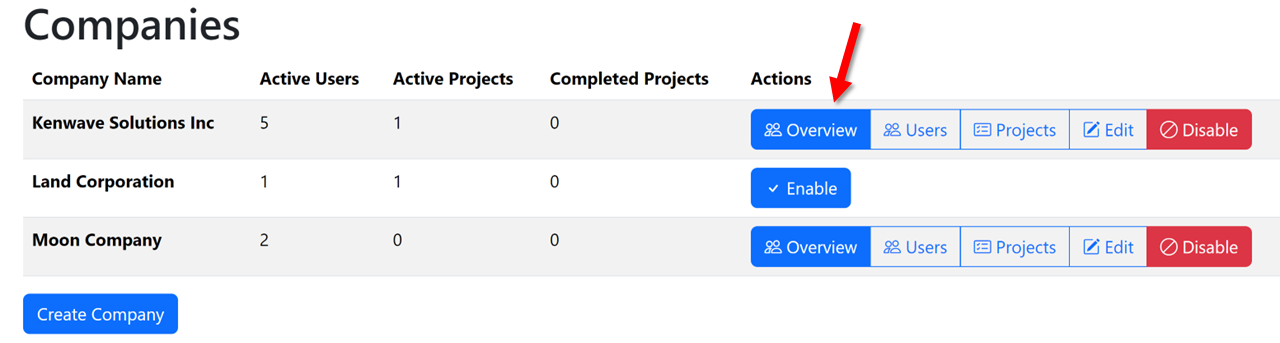
After clicking on the button, the page will show an accordion with three sections:
Company Details
Company Users
Company Projects
Each section provides different types of information. The following content and figures depict each section.
Company Details
The Companies Details panel shows the following information:
Company Address
Manager
The figure below presents an example of an accordion for the KenWave Solutions Inc company information displaying the Company Details panel selected.
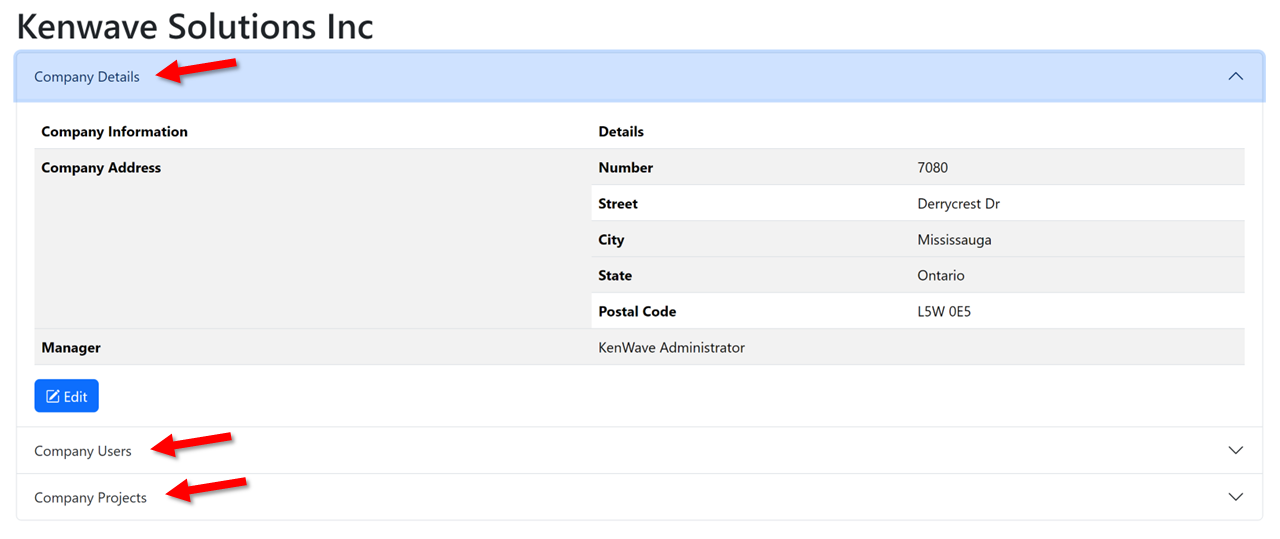
On the Company Details panel is possible to edit the company data clicking on the button Edit at the bottom of the panel. This button has the same effect as the Edit button on the Companies page.
Company Users
The Company Users provides basic information about the registered users of the selected company:
User Name
User Role
User Email
In addition, the column Actions allows the following tasks on each user of the list:
Profile → access the user’s profile page.
Edit User → change the user’s data.
Email User → change the user’s e-mail.
Reset Password → allows the user to reset their password.
Enable/Disable User → toggle the user’s status.
The figure below shows an example of a Company Users panel for the KenWave Solutions Inc company.
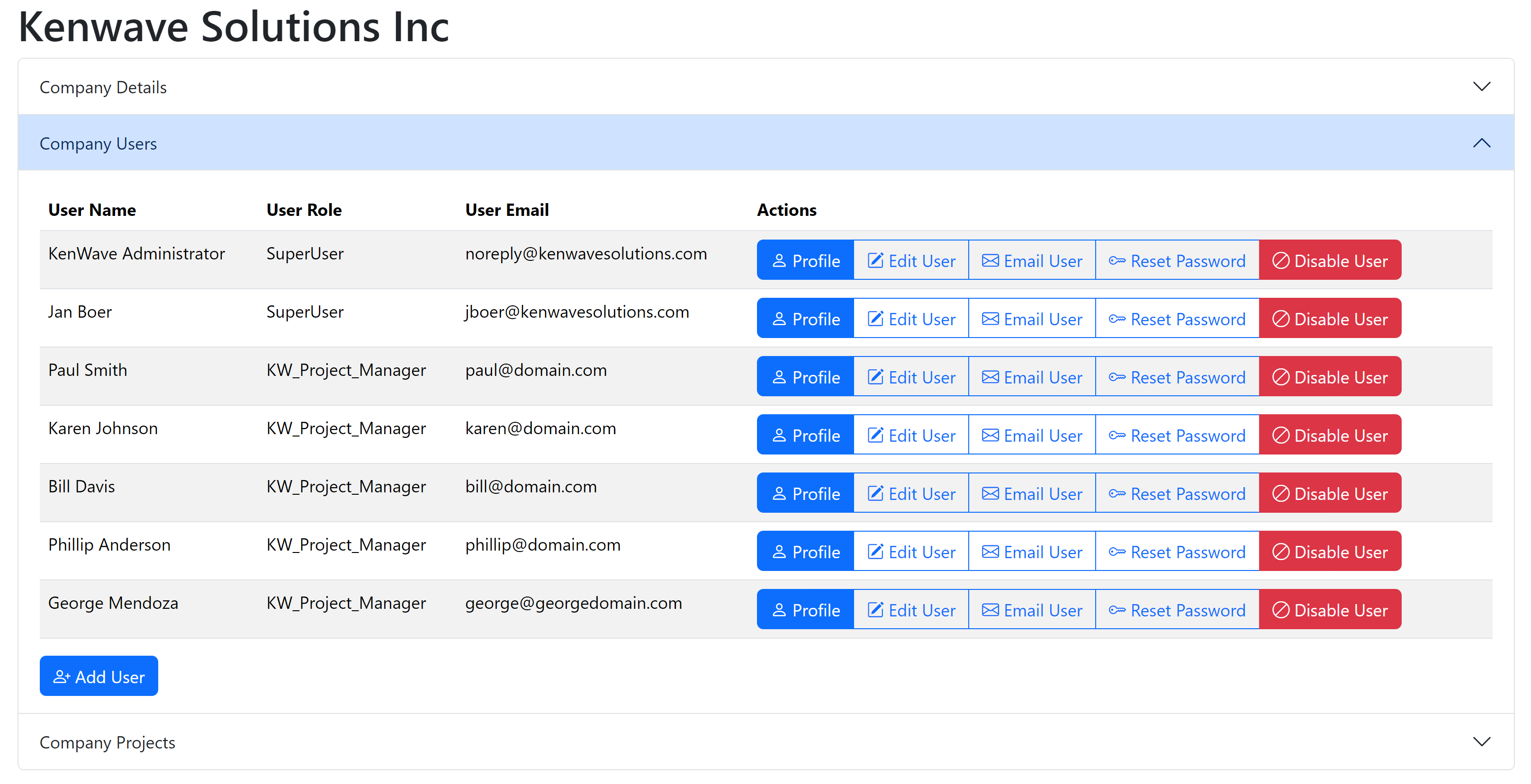
At the bottom of the panel is possible to add a new user clicking on the Add User button and filling the form.
Company Projects
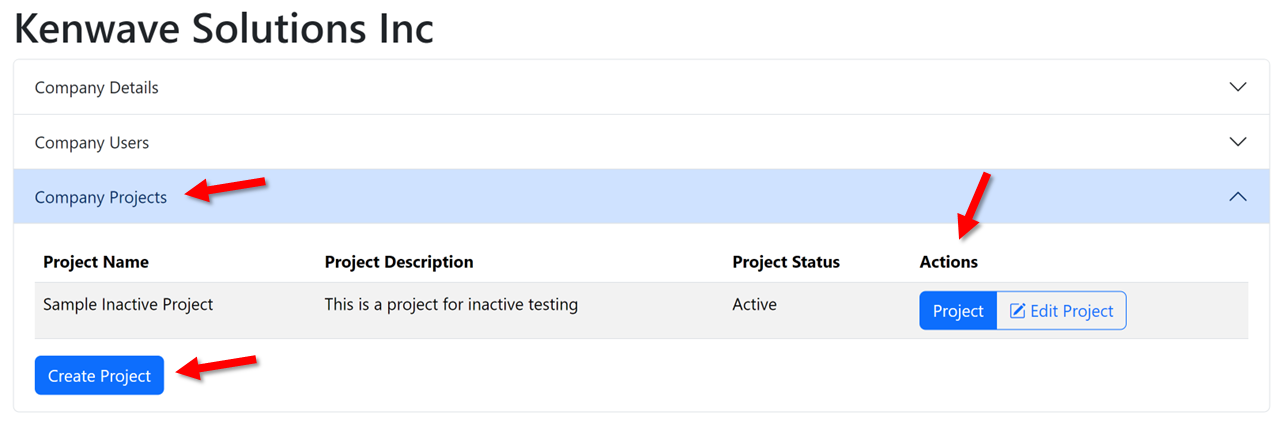
The last panel of the companies Overview page is the Company Projects panel, which shows the following information about the company’s projects:
Project Name
Project Description
Project Status
In addition, the column Actions provides two buttons:
Project → sends the user directly to the Project Detail page.
Edit Project → sends te user to the Update Project page, where is possible to change the project’s data on the form.
Finally, at the bottom of the panel there is the button Create Project, which allows the user to go directly to the project creation page.
The figure below shows an example of a Company Projects panel for the KenWave Solutions Inc company.
Another way to see the company’s project is by clicking on the button Projects at the Companies page.
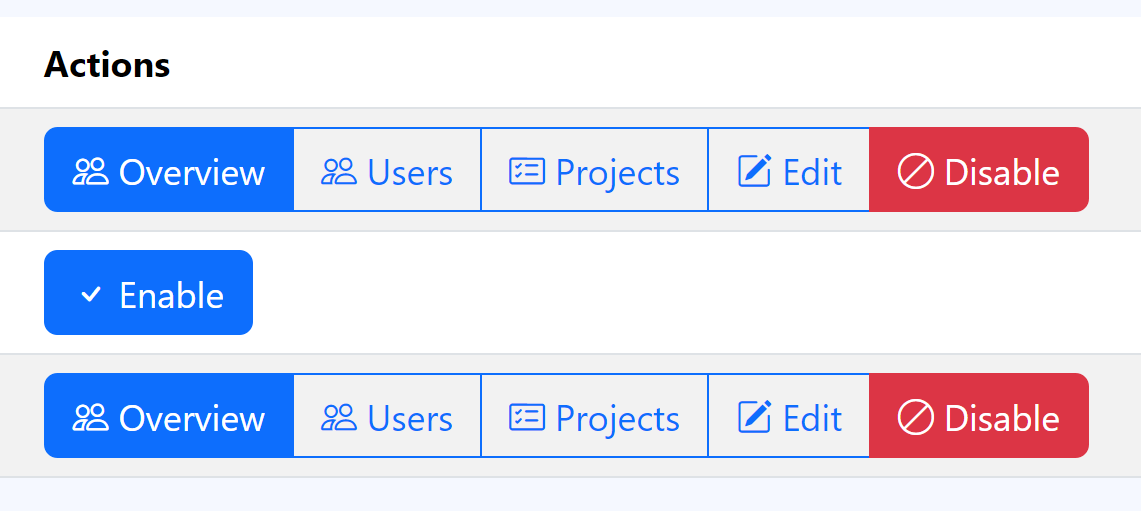
The button Projects drives the user to the Company Projects page, where an accordion lists the projects depending on their status, which can be the options below:
Archived
Active Recording
Analysis Pending
Analysis in Progress
Analysis Review
Analysis Published
Project Review
Project Draft
Project Issue
Active
Disabled
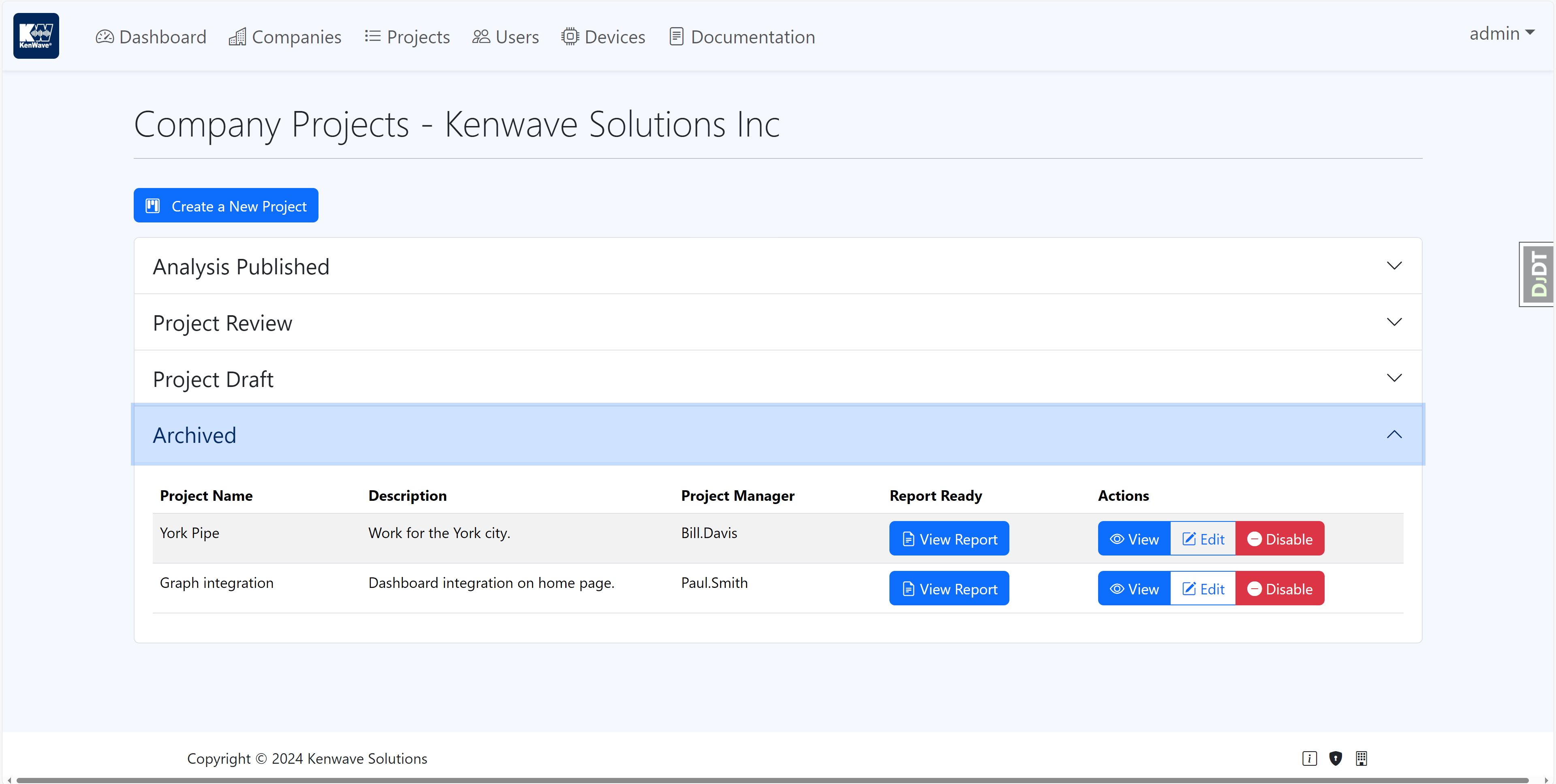
The figure below shows an example of accordion projects of a company.