Edit a Company
To edit a company on the companies page, follow the steps below.
Edit a Company
On the navbar, click on the Companies link.
On the company’s row, click on the Edit button.
Update the fields that need changes on the Update Company form.
On the Active until calendar field, select the end date of the period in which the new company will remain active.
Warning
After the selected date, the company status will automatically change to Disabled.
Select the manager of the company on the Company manager dropdown list.
Note
If the manager does not appear in the list, ask your administrator to include them as a new user in the DRI Analytics database.
Click on the button Update Company.
The figure below shows an example of Update Company form:
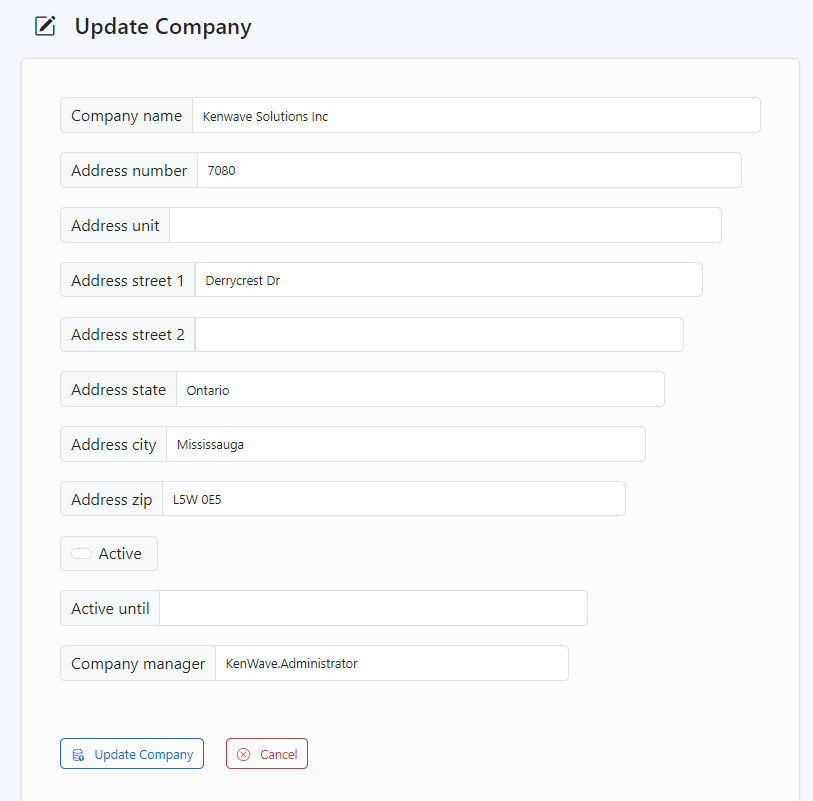
Update Company form