Update Reports
To update a report, follow the steps below.
Updating Reports
On the navbar, click on the Companies link.
On the column Actions of the Companies page, click on the Projects button of the company you want to view the reports.
On the accordion, click on one of its sections’ titles to find the desired project. On the image below, the Project Review title was clicked to display the projects with this status.
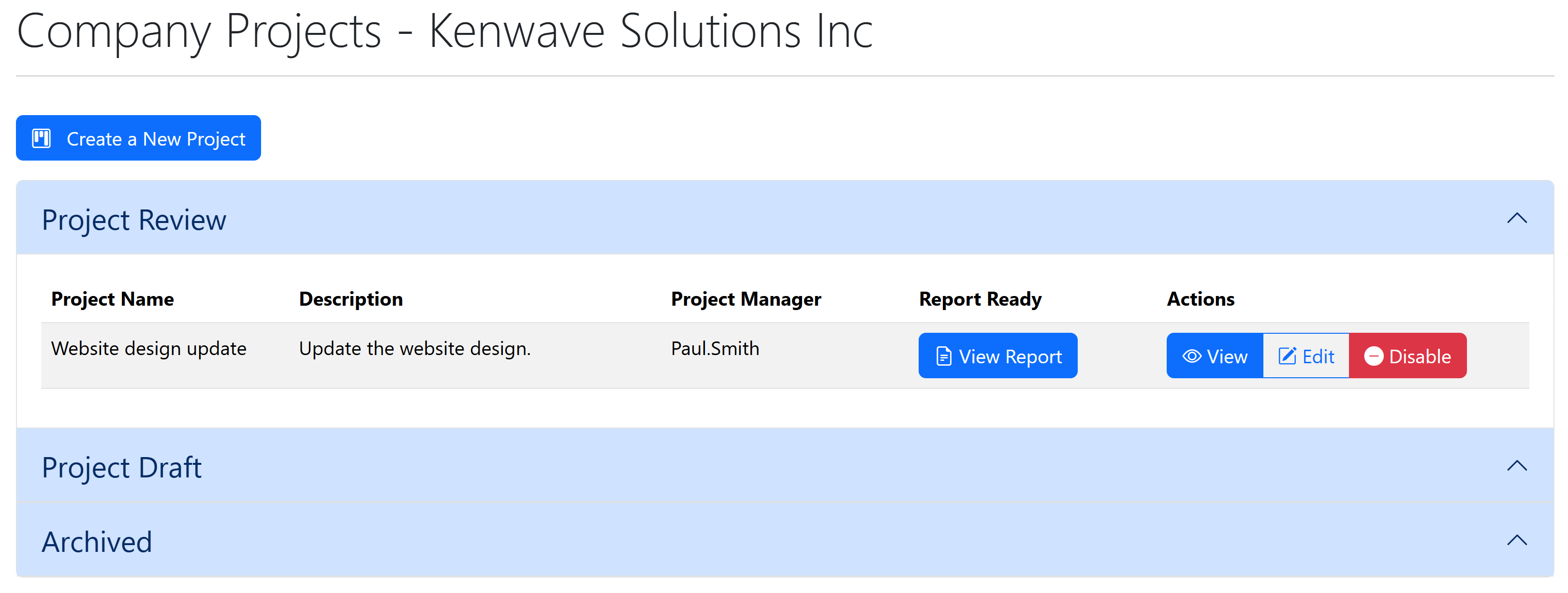
Click on the View Report button of the project; the Project Report page appears.
Warning
If the project does not have any project, a green button labeled Create Report appears instead of View Report.
Click on the button Update Report; the Update Report page appears with the name of the project and the report’s content. See the image below.
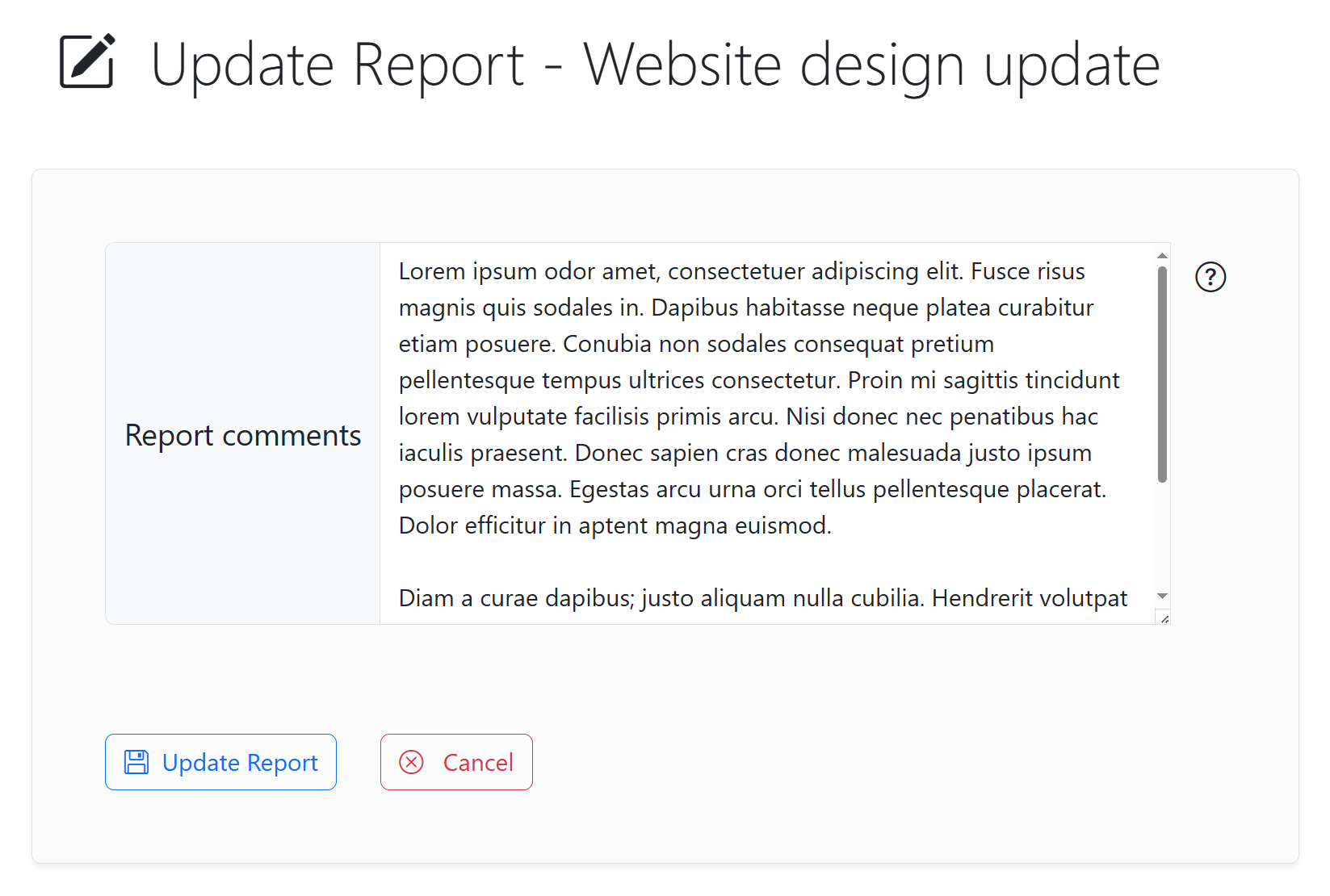
Edit the Report content text field.
Click on the Update Report button to save the changes or the Cancel button to discard them.
Tip
To see help information for any form field, position the mouse over the icon.