Delete Reports
To delete a project’s report on the Companies page, follow the steps below.
Deleting Reports
On the navbar, click on the Companies link.
On the column Actions of the Companies page, click on the Projects button of the company you want to view the reports.
On the accordion, click on one of its section titles to find the desired project. On the image below, the Active title was clicked to display the projects with this status.
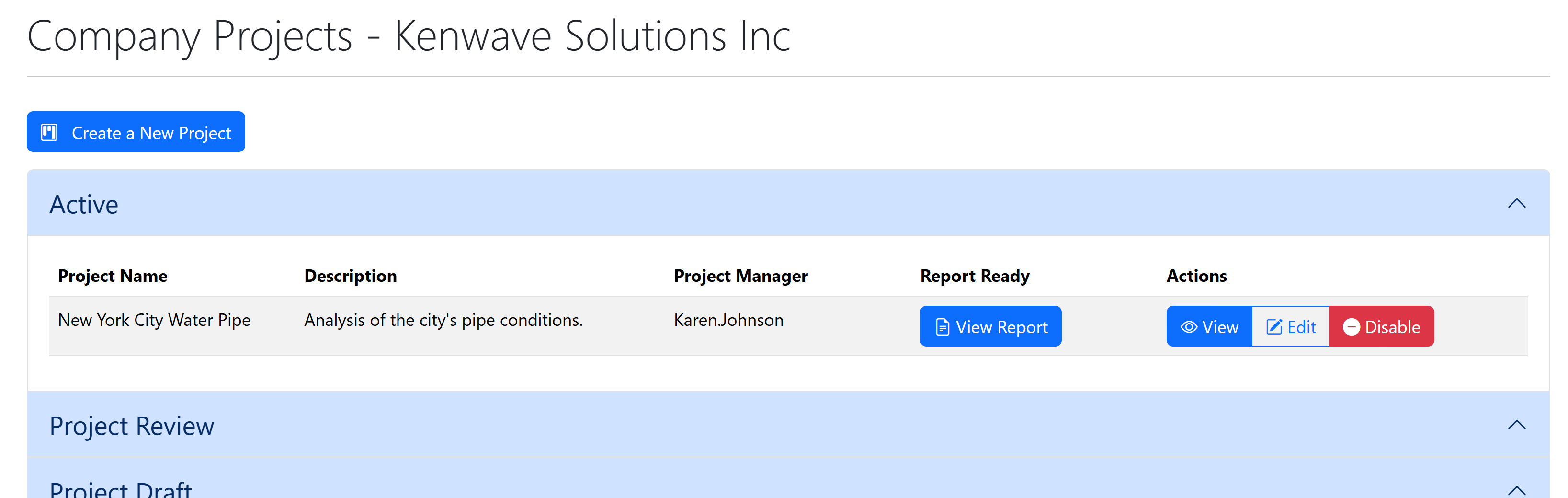
Click on the blue View Report button of the project; the Project Report page appears.
Warning
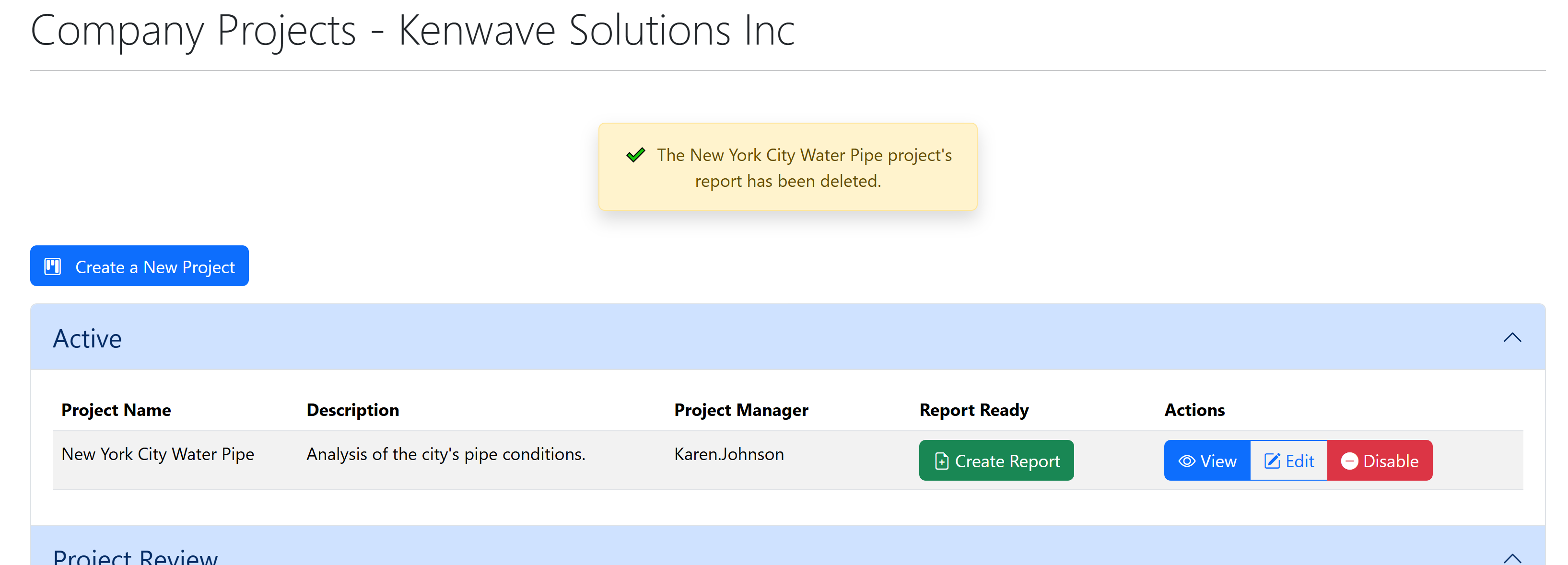
If the project does not have any project, a green button labeled Create Report appears instead of View Report.
Click on the red button Delete Report; the Delete Project’s Report modal window appears with the name of the project and asking for confirmation. See the image below.
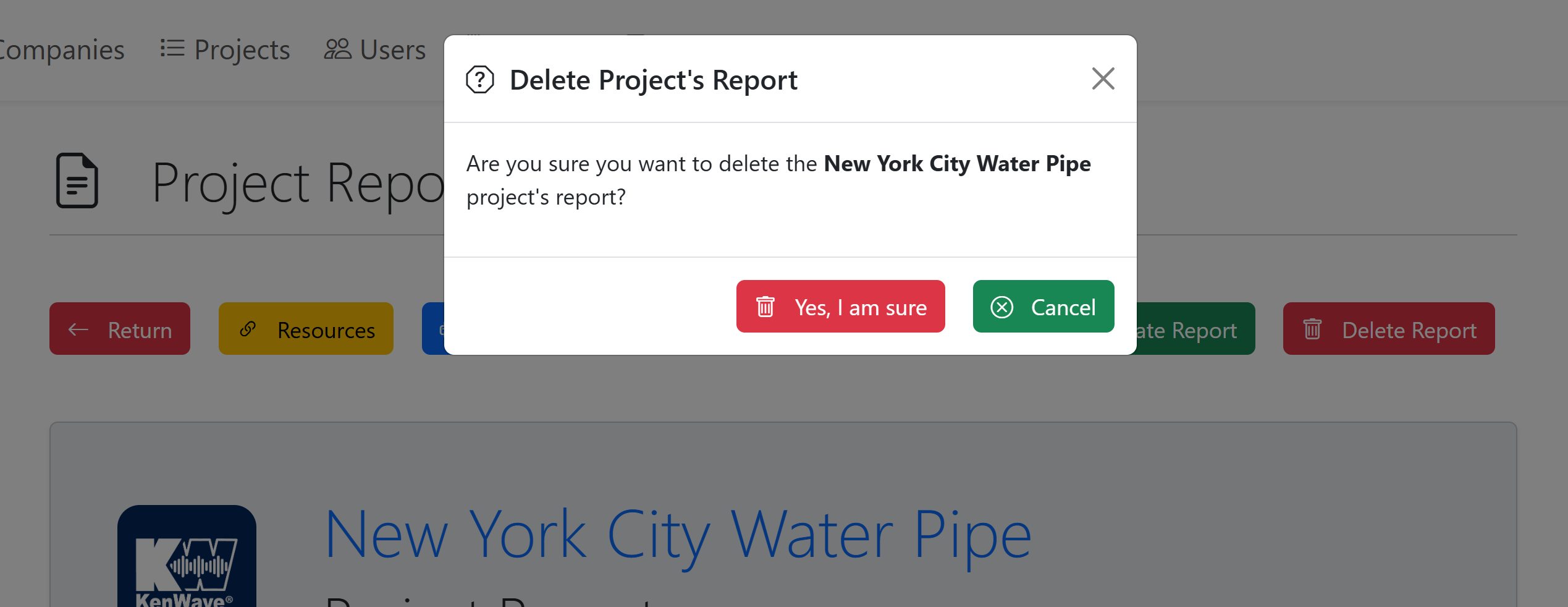
Click the red button Yes, I am sure to confirm the operation or the green button Cancel to return to the Project Report page.
The report’s content is deleted and the Comapny Projects page shows an alert message.