Management
Edit a Project Location
To edit a project’s location, follow the steps below:
Editing a Project Location
- On the navbar, click on the Project Management link.
- Click on the Location tab.
- On the Select column of the Projects panel, click on the Select project's icon to select it.
- Click on the Edit icon on the Toolbar; the Update Location form will appear on a modal window.
- Update the fields on the form.
- Click on the button; the General tab will be displayed.
- Click on the Loaction tab to display the new map on the tab.
The figure below shows the Select Project icon on the Projects panel:
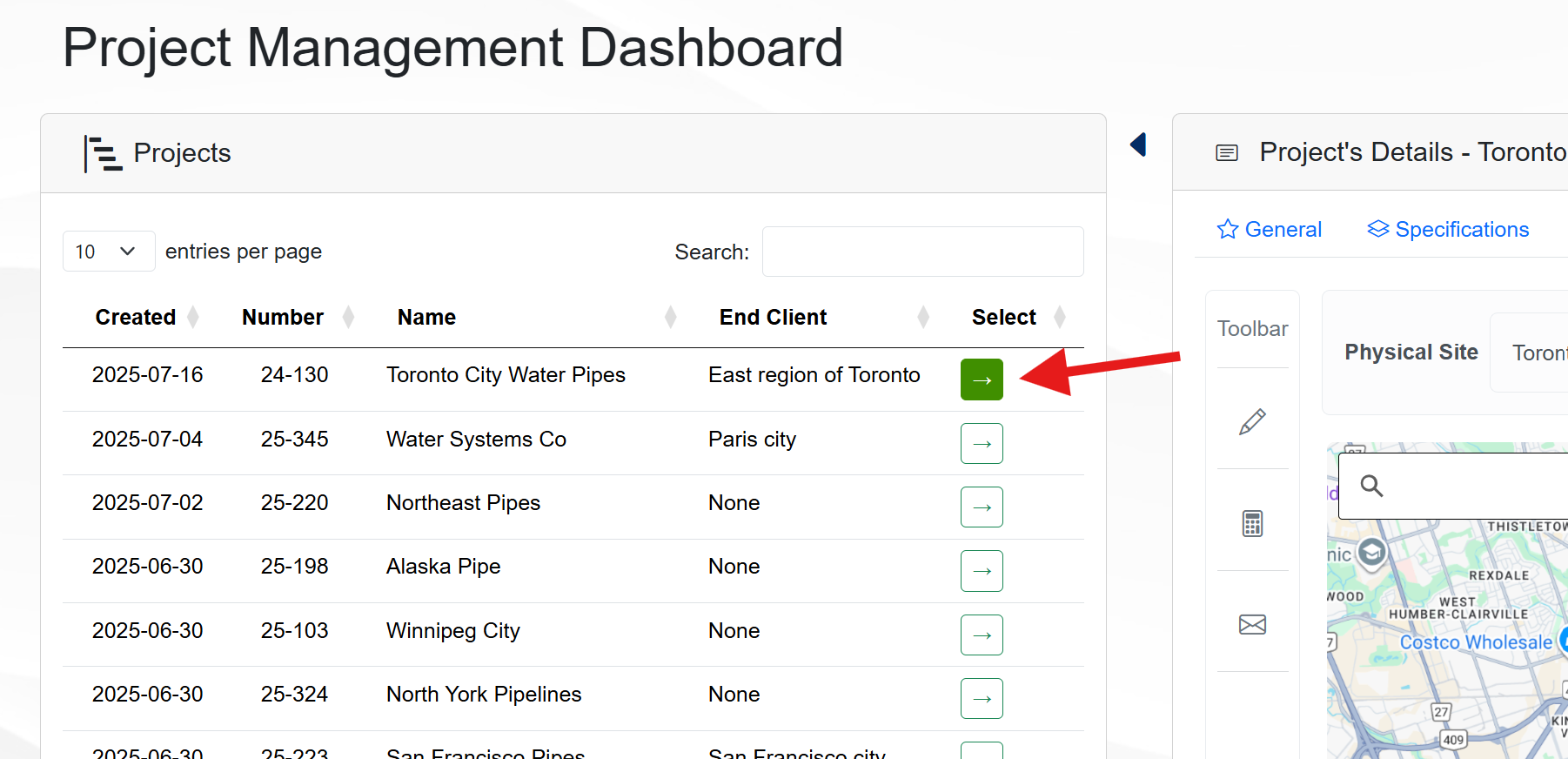
Select Project icon
The figure below shows an example of the Update Location form:
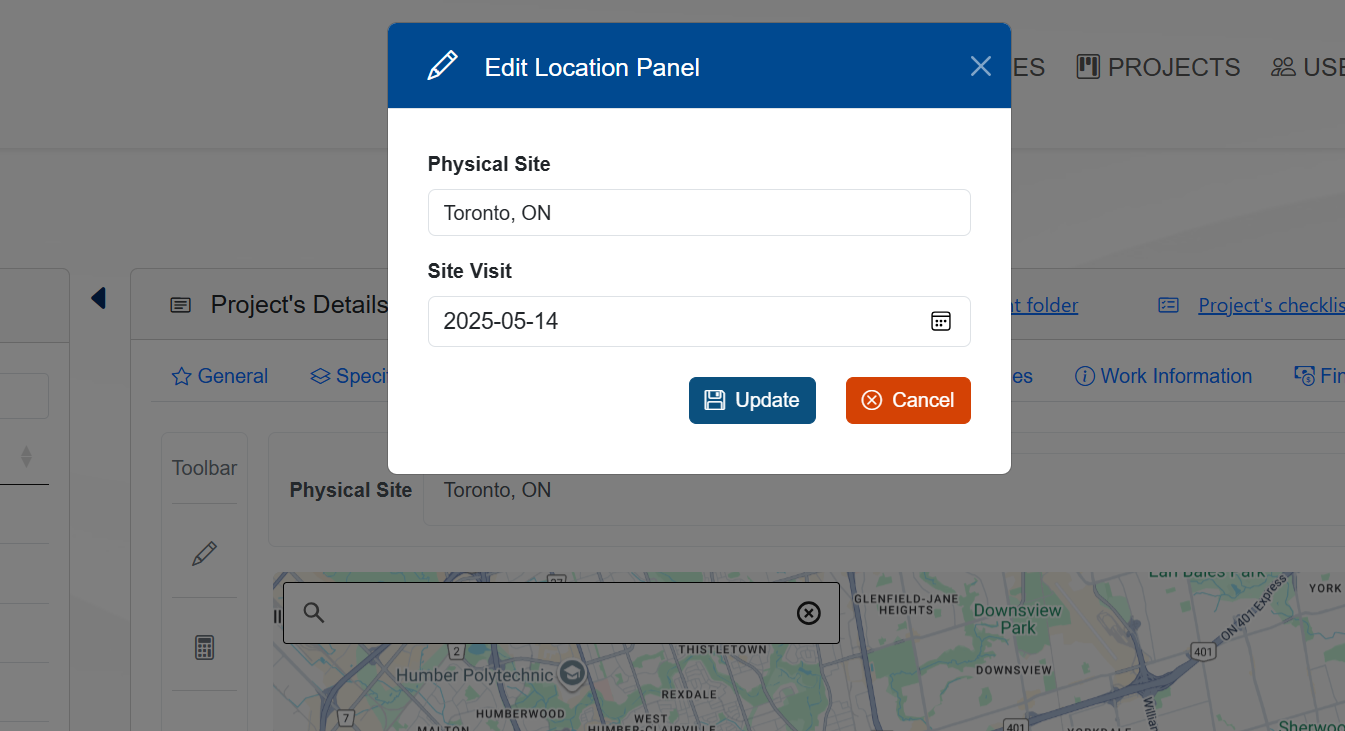
Update Location form
Note
When the project's location is updated, it's not necessary to reload the page to see the changes. The map will be updated automatically.