Notes
The Notes section on the Management page tabs allows the user to view, create, edit, pin, archive, and restore a tab’s note.
The figure below show an example of the Notes section on the Work Information tab.
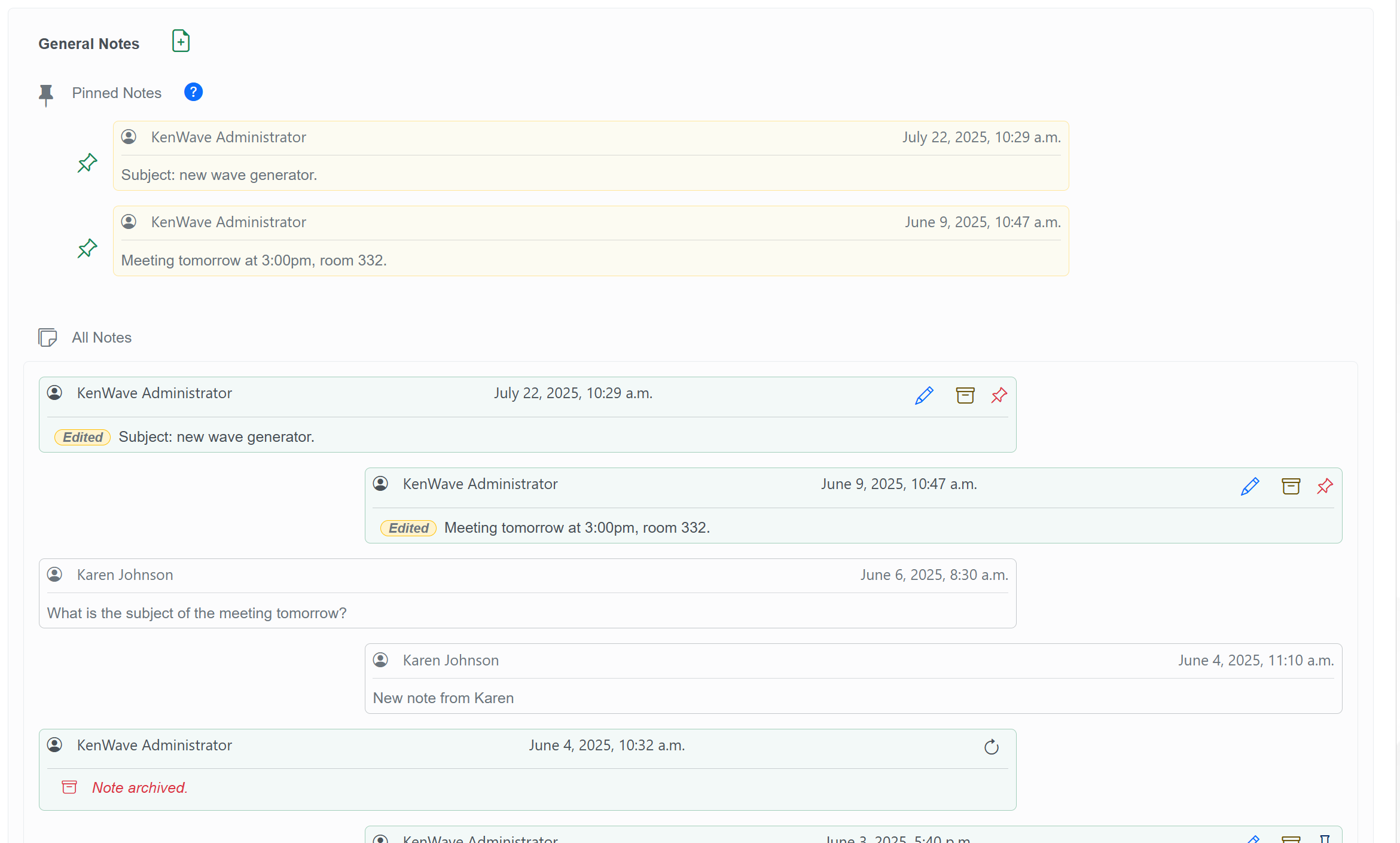
Some important consideration regarding the Notes section:
The Notes section is available on all tabs of the Management and Analytics pages.
Each tab has its specific notes. This way, each tab on the Management and Analytics pages can have its own notes, which are not shared with other tabs.
It's possible to do the following actions on the Notes section:
- Create a note: Click on the Add Note button, type your note, and then click on the Save button.
- Edit a note: Click on the pencil icon next to the note you want to edit, make your changes, and click on the Save button.
- Pin a note: Click on the pin icon next to the note you want to pin. Pinned notes will appear at the top of the notes list.
- Archive a note: Click on the archive icon next to the note you want to archive. Archived notes will be hidden from the main view but can be restored later.
- Restore an archived note: Go to the archived notes section, click on the restore icon next to the note you want to restore.
When editing an existing note, it's possible to use the following options:
- Save the new note: Click on the Save button.
- Clear the new note text: Click on the eraser icon to clear the text input area.
- Cancel: Click on the cancel icon to discard changes and close the edit window.
The image below shows an example of the Notes section edit window.

When a new note is created, it will be added to the top of the notes list.
The pinned notes will always appear at the top of the notes list, regardless of their creation date. The figure below shows an example of the Notes section with pinned notes.
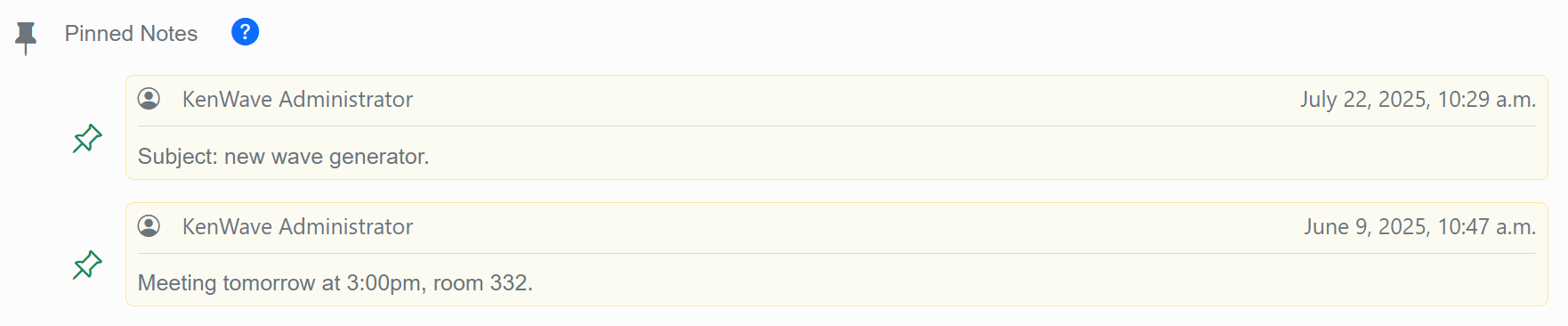
The pinned notes show a sloped green pin icon which allows the user to unpin the note. Click on this icon to remove the note from the pinned notes section.
To pin a note, click on the sloped pin icon next to the note you want to pin.
Pinned notes will be moved to the top of the notes list. When a note is pinned, it will be highlighted in the notes list with a sloped red icon, making it easier to identify the pinned notes.