Manage Sites
The Manage Sites window on the Analytics page allows the user to create new sites on the selected project.
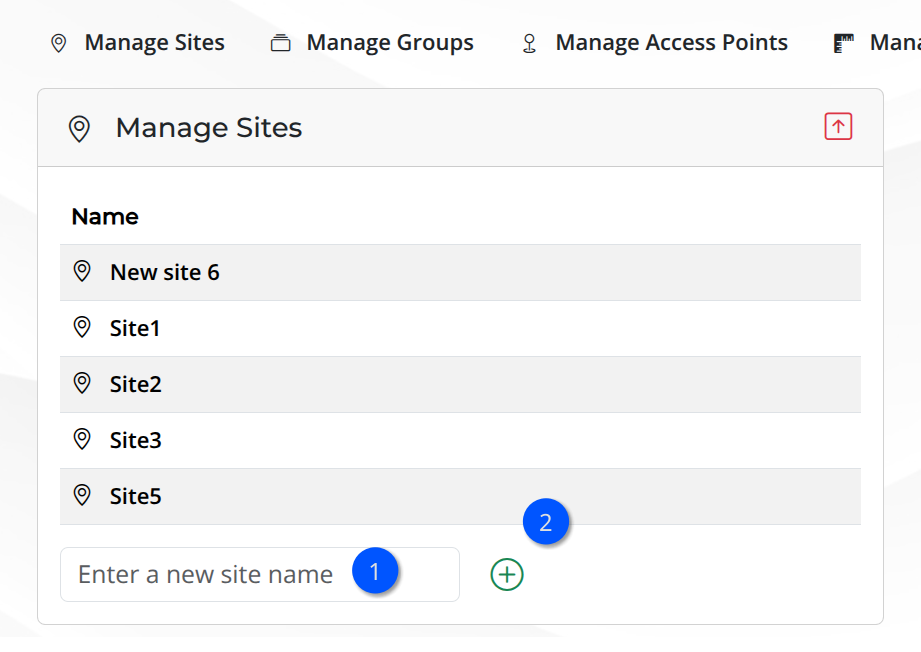
The figure below displays the Manage Sites panel with the input text field to enter a new site in the project.
Manage Sites
Archiving Sites
The last column in the Manage Sites table is called Archive and may show two different action icons:
| Archive the selected site. | |
| Restore an archived site. |
The toggle icons allow the user to stage changes to the sites’ archive state in the Stage tab.
Warning
Changing a site from archived to restored, or vice versa, does not change its state in the database until the Stage tab changes are committed.
Adding a New Site
To add a new site, type the site name in the text field and click the icon to add it. The list of sites will be updated.
Warning
Duplicated name - If the user tries to add a site that already exists, the platform will throw an error message. Try again with a different name.
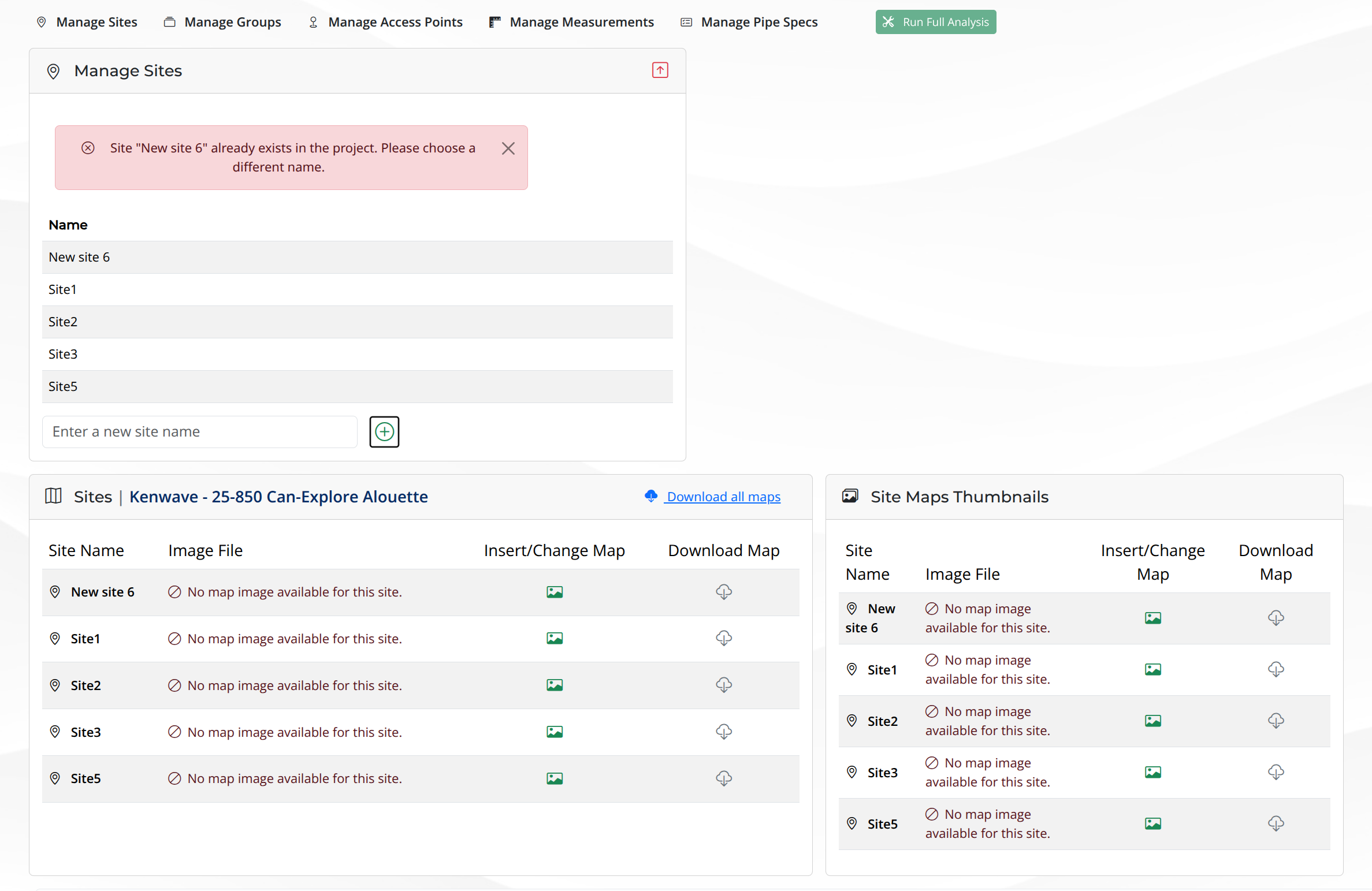
Duplicated site
When a unique site is added, the list of sites is updated in the Manage Sites and Sites panels.
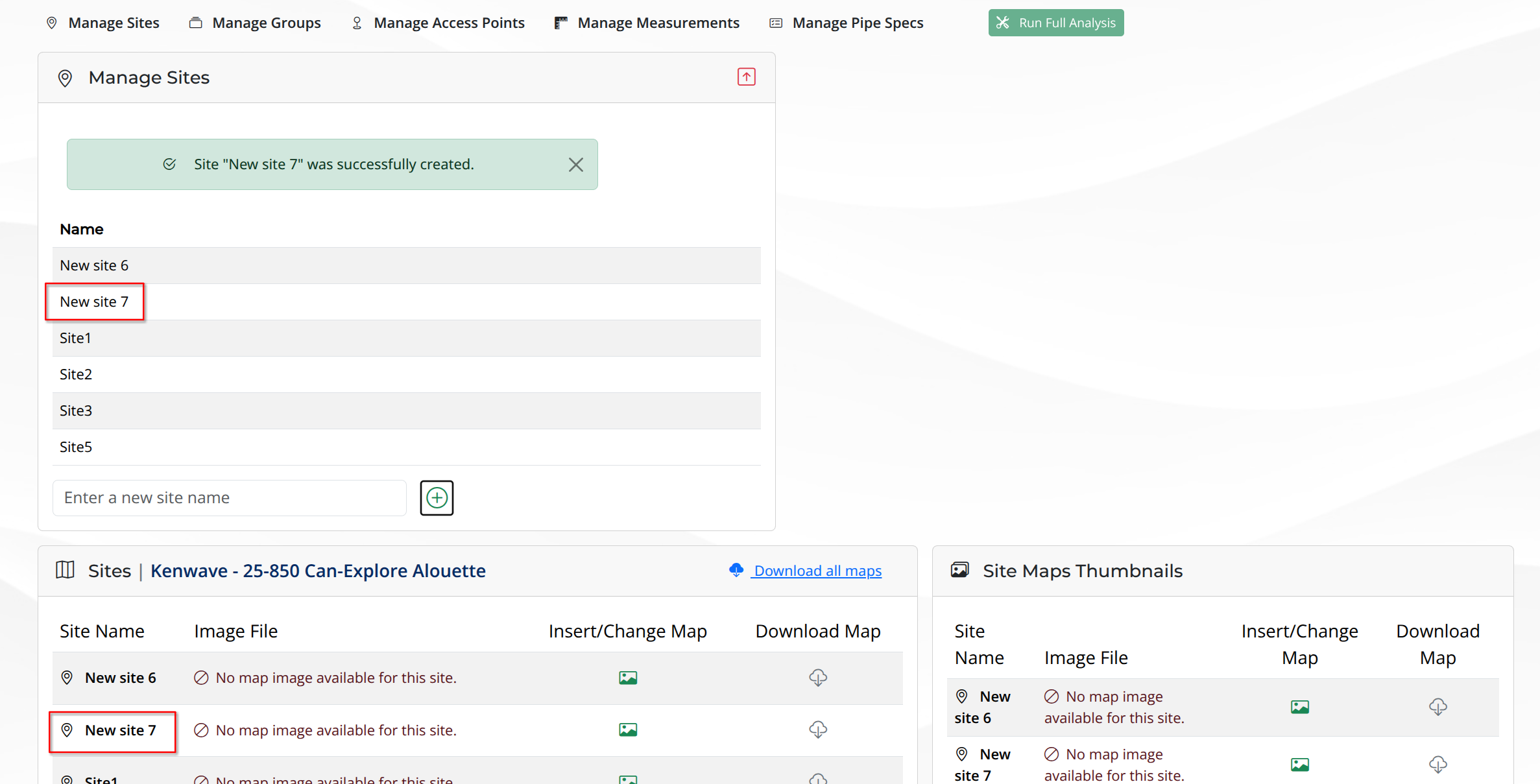
New site added
Warning
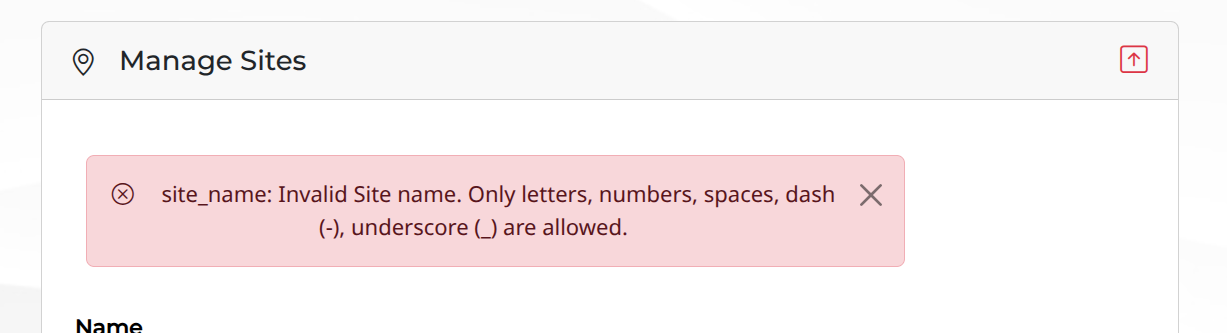
Unauthorized characters - Use only alphanumeric characters, underscores (_) and dashes (-) in the file name.
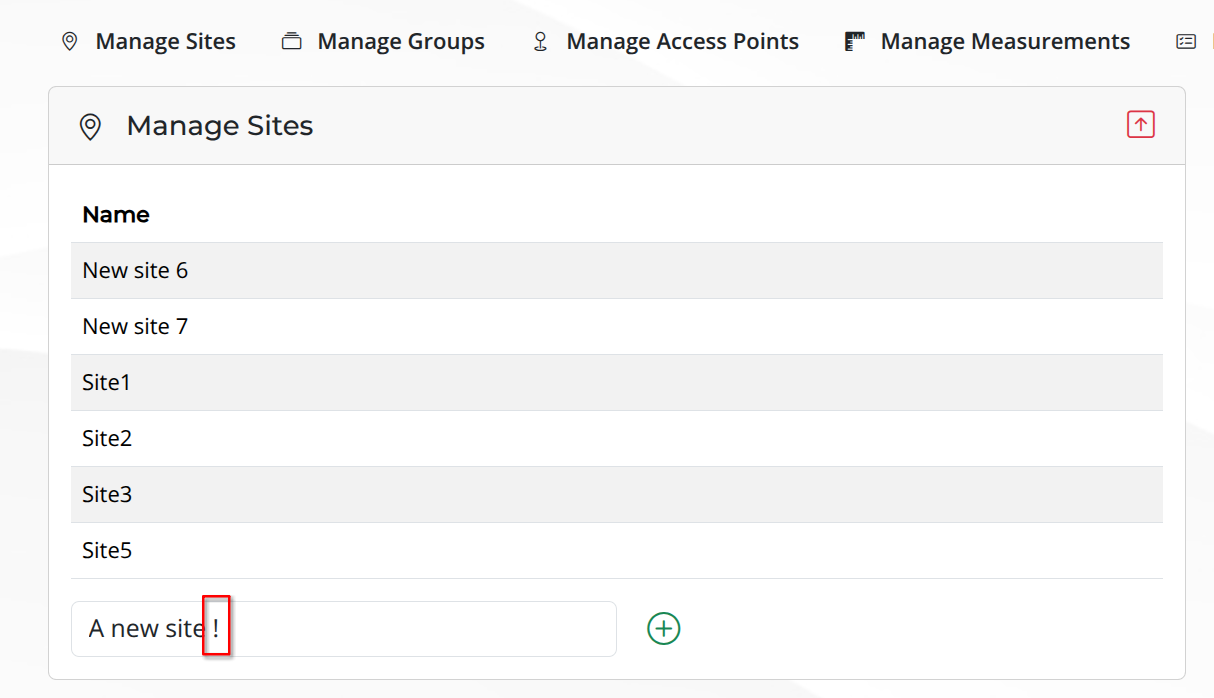
Unauthorized characters
The figure below shows the error message displayed when invalid characters are used.
Error message