Field Notes
The Field Notes tab on the Analytics page allows the user to set general information about the project and its sites and groups.
The figure below displays the Analytics page with the Field Notes tab selected for the Kenwave - 25-850 Can-Explore Alouette project. The red rectangle highlights the Field Notes Forms menu.
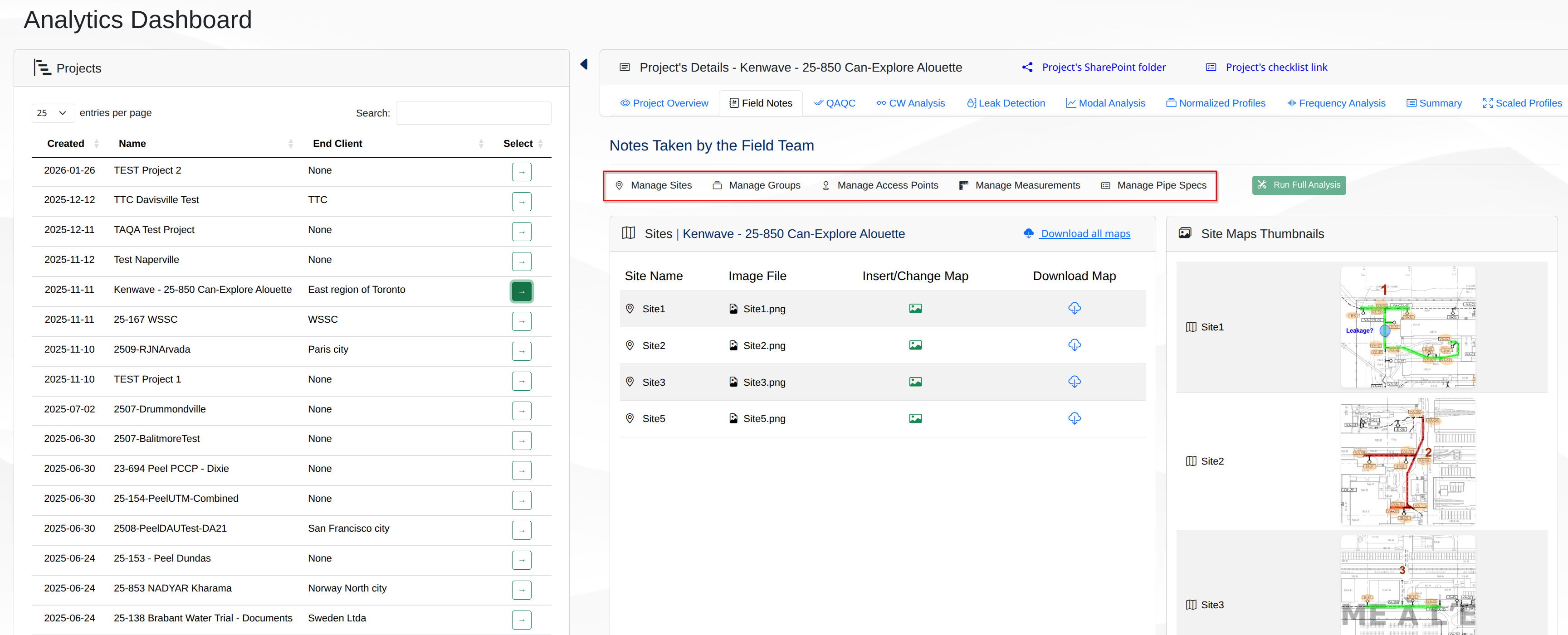
The Field Notes tab contains the following elements:
Field Notes Forms → A toolbar to access the Field Notes Forms.
Manage Sites → A panel to manage the project’s sites.
Manage Groups → A panel.
Manage Access Points → A panel with sites and groups lists for selection and a table to display and manage access points. A button Add Access Point is available.
Manage Measurements → A panel to manage the project’s measurements. A button Add Measurement is available.
Manage Pipe Specs → A panel to manage the project’s pipe specifications. A button Add Pipe Spec is available.
Field Notes Forms:
Manage Sites Panel
The Manage Sites panel allows the user to view and manage the project’s sites. It contains a table with the list of sites added to the project. The table displays the following columns:
Site Name → The name of the site.
Image File → The map image file associated with the site.
Insert/Change Map → An icon to insert or change the site’s map when clicked.
Download Map → Icons to dowload a site’s map image to the user’s computer download folder.
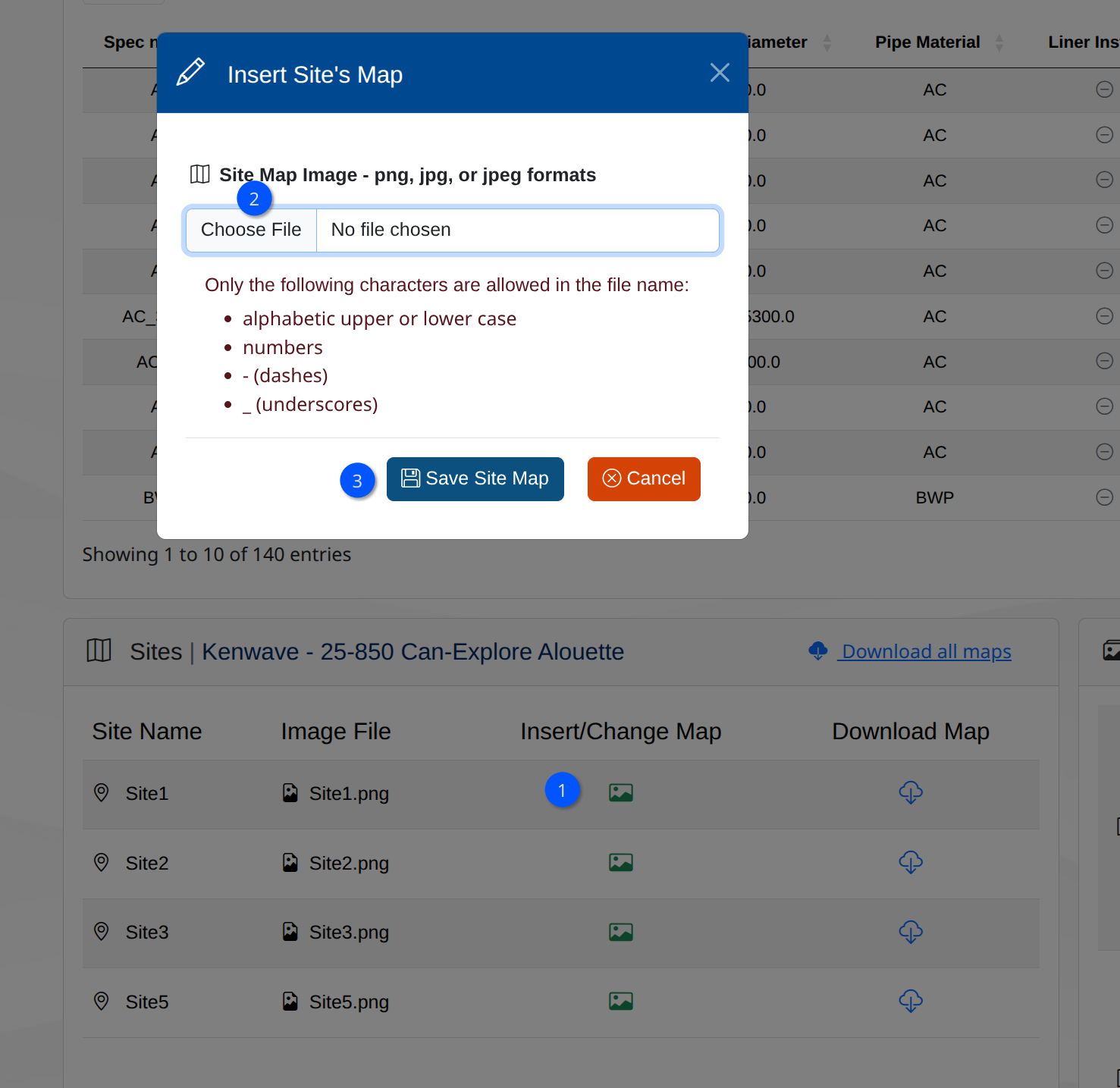
The Insert Map column of the sites table allows the user to insert or change the site’s map. Click on the icon to open the modal window with a form to insert or change the map.
The figure below shows an example of the Insert Site’s Map icon and the modal window on the Sites table:
To the right of the Sites table, the panel Site Maps Thumbnails displays the thumbnails of the maps associated with the sites. Click on a thumbnail to open the map in a new browser tab for a better view.
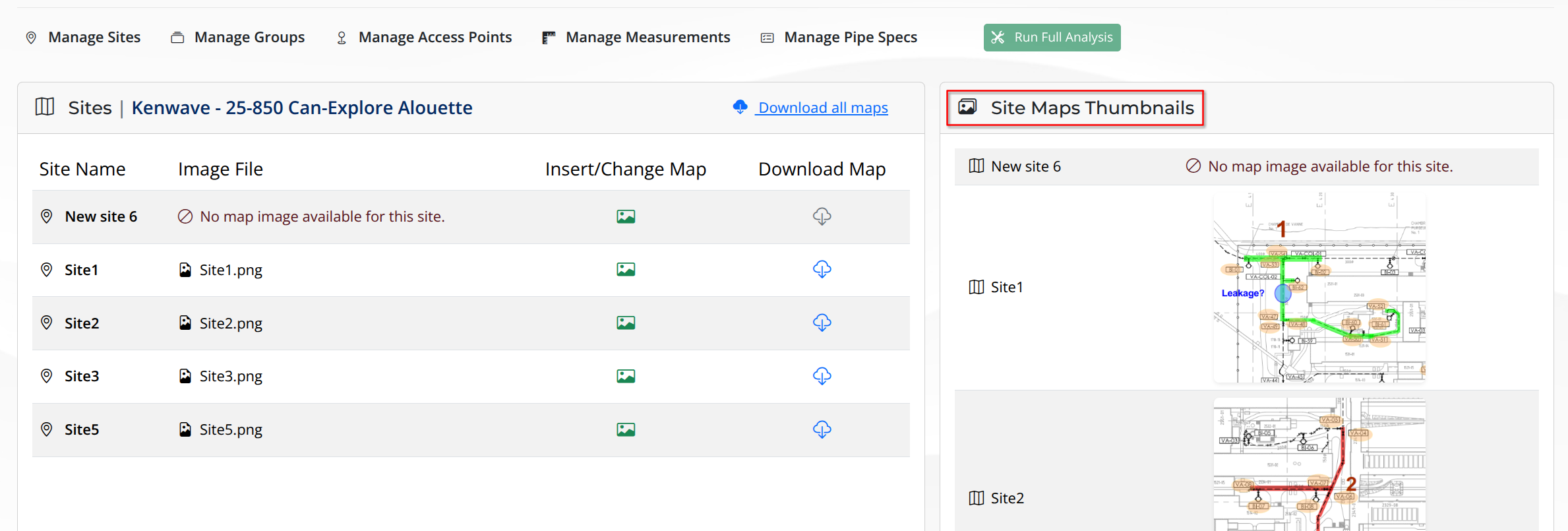
The Field Notes tab has five Field Notes Forms available to manage the project’s sites, groups, access points, measurements, and pipe specifications.
The user can access the forms by clicking on the buttons at the Field Notes Forms toolbar, which allows the user to manage the project’s sites, groups, access points, measurements, and pipe specifications. The figure below shows the Field Notes Forms toolbar:
