Manage Measurements

Field Notes Forms

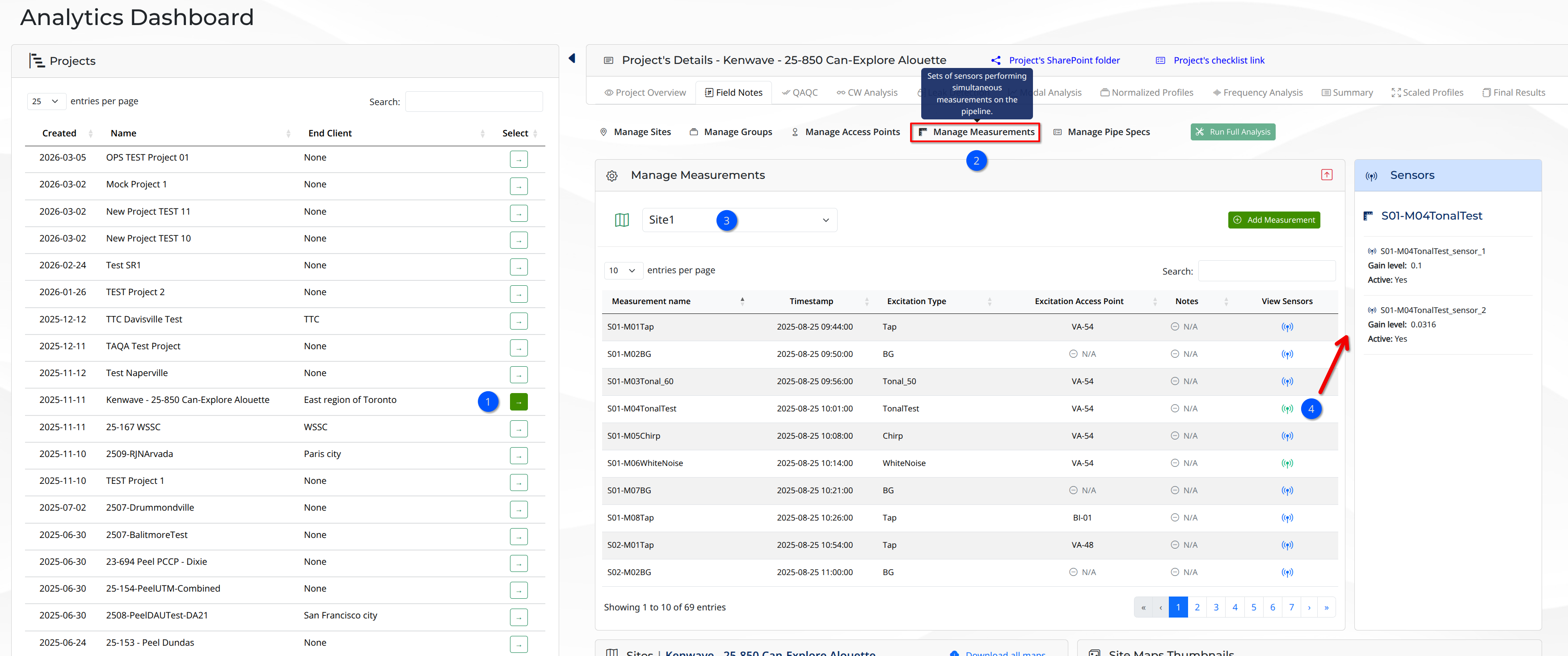
To open the Manage Measurements window for the selected project , click on the button
Manage Measurements
of the Field Notes Forms toolbar. The window will open showing the information and icons presented in the figure below.
Manage Measurements window.
Manage Measurements window

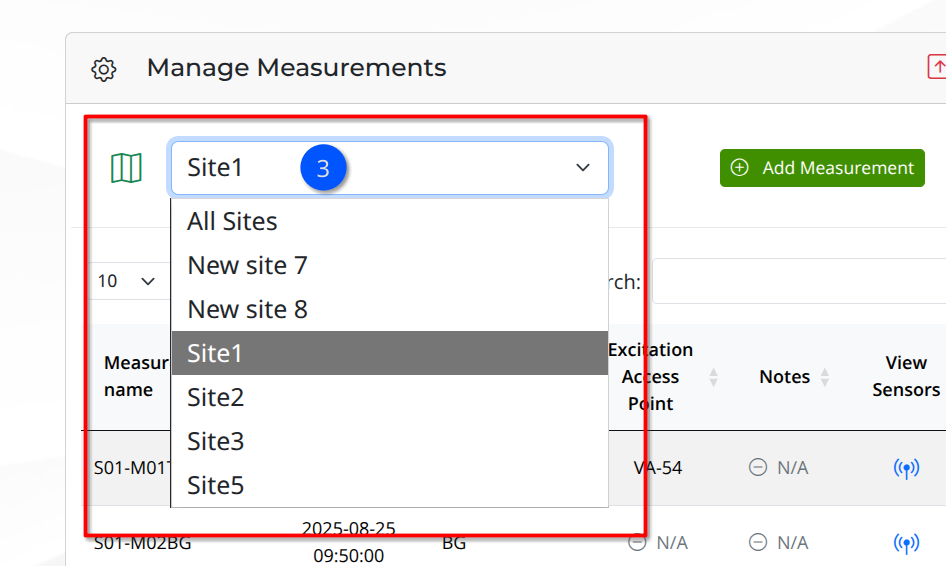
After selecting the project , the user can see all measurements for the project and their related information in the main table. To filter the measurements by site, click on the select sites dropdown list and choose the desired site .
Site Filtering.
Site Filtering

 Tip

To clear the site filtering, select All Sites on the sites dropdown list. You'll be able to see all measurements for the project again.

Creating a New Measurement

To create a new measurement, click on the button. This will open the Add Measurement modal window where the user can enter the information for the new measurement. For more information on how to create a new measurement, see:

Add Measurement

 Warning

When creating a new measurement, make sure to select the correct site for the measurement. This will ensure that the measurement is properly associated with the site and can be easily filtered and analyzed later on.

The button is only enabled when a project is selected . If no project is selected, the button will be disabled and the user will not be able to create a new measurement.

After clicking on the button, the Add Measurement modal window will open, where the user can enter the information for the new measurement.
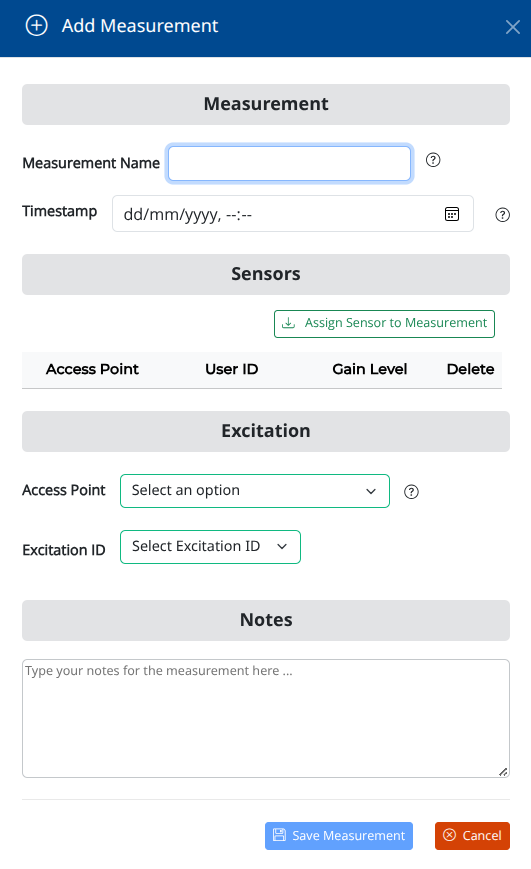
Add Measurement Form.
Add Measurement Form

The only field that is not required is the Notes field, where the user can enter any additional information about the measurement. All other fields are required and must be filled out before the measurement can be created.

 Note

To enable the button, make sure to fill all required fields and include at least two sensors to the new measurement. Otherwise, the button will remain disabled and the user will not be able to create the new measurement.

The Measurement Name field should be unique in the project. If the user tries to create a measurement with a name that already exists in the project, an error message will be shown and the measurement will not be created. The figure below displays the error message.
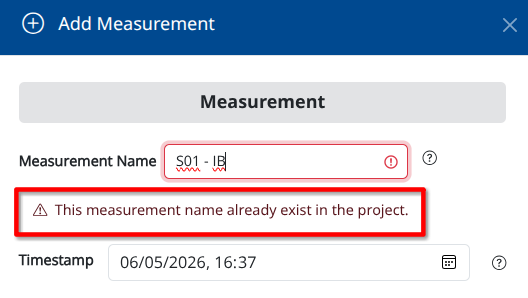
Add Measurement unique name error message.
Add Measurement unique name error message

Another error message appears when the user tries to create a new sensor with a User ID already used by another sensor in the same measurement. The User ID field should be unique for each sensor in the same measurement. If the user tries to create a sensor with a User ID that already exists in the same measurement, an error message will be shown and the sensor will not be created. The figure below displays the error message.
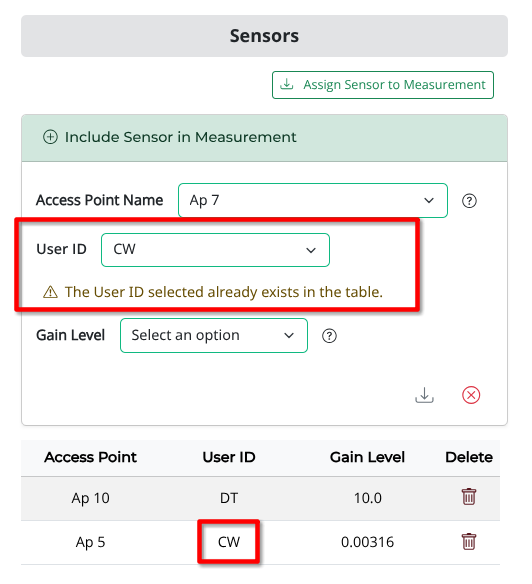
Add Measurement sensor User ID unique error message.
Add Measurement sensor User ID unique error message

After filling all fields in the form, click on the button to create the new measurement.

Sensors

To see the sensors associated with a measurement, click on the
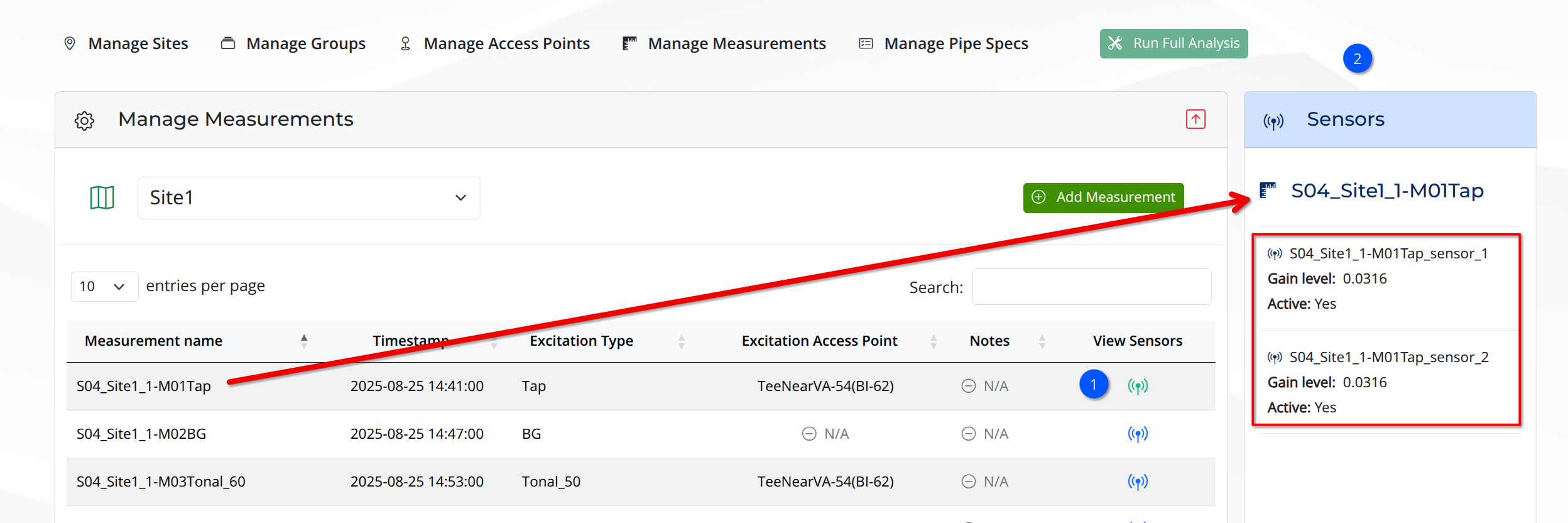
sensor icon on the measurement table's row. The Sensors panel will show the sensors associated with the measurement, as well as their related information:
  • the sensor name
  • its gain level
  • if it's activated or not
For more information on sensors, see: