Files
The Files tab on the Management page allows the user to get information regarding the essential files and links associated with the selected project.
The tab displays the following information:
Jira Project
Jira Project Link
SharePoint Folder
Checklist Link
SharePoint File Link
The figure below shows an example of the Files tab.
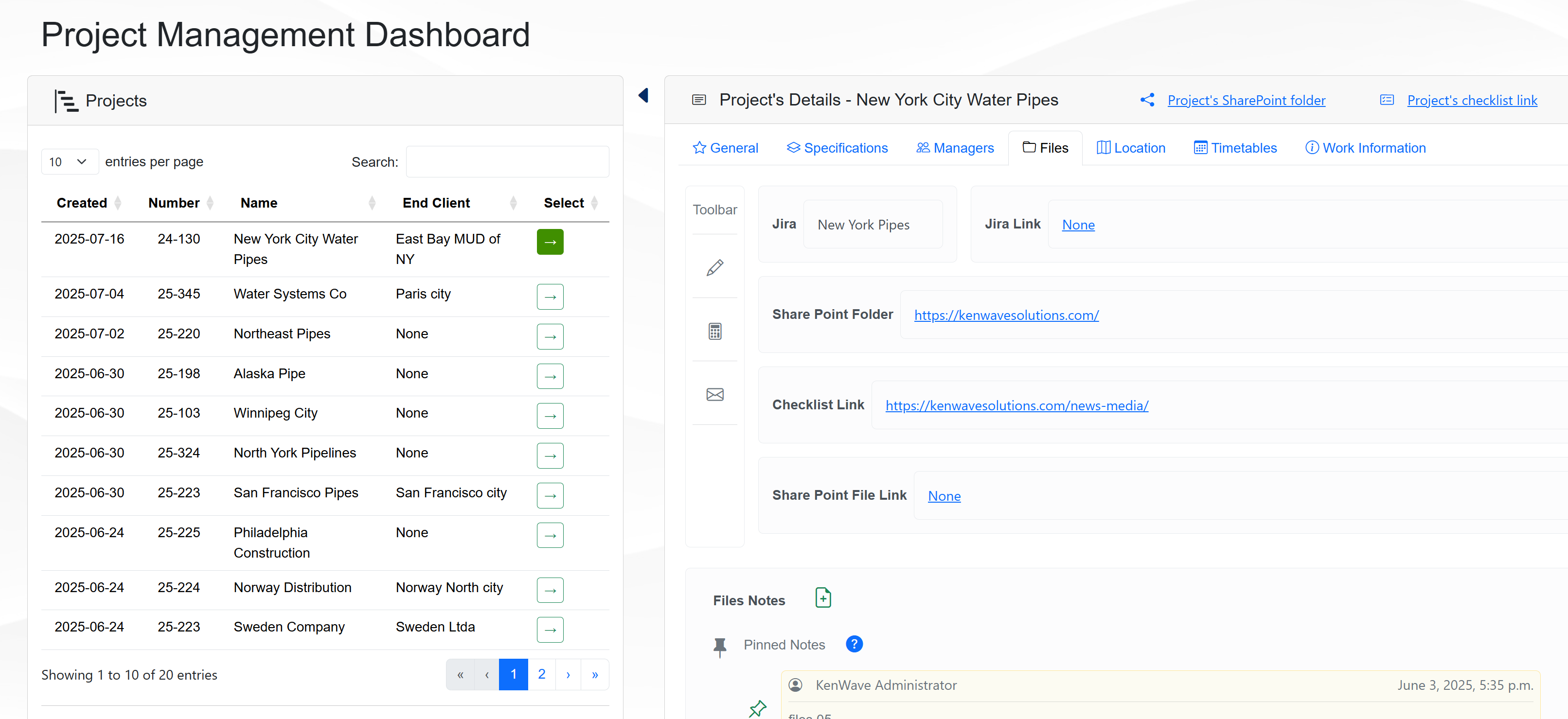
Files tab
To edit the tab’s information, click on the Edit icon on the toolbar, represented by a pencil. A modal window will open where you can change the files and links information.
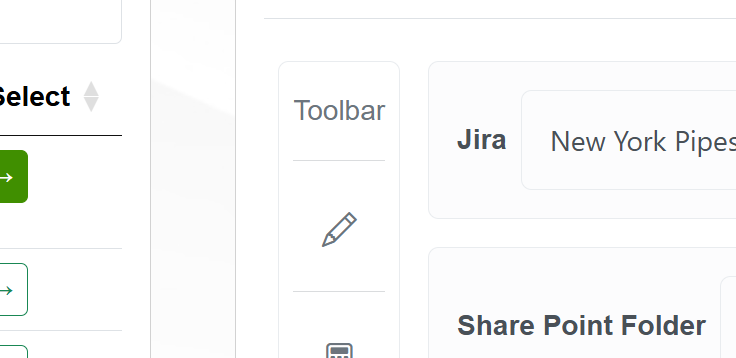
Edit icon on the toolbar
The figure below shows an example of the Edit Files Panel modal window.
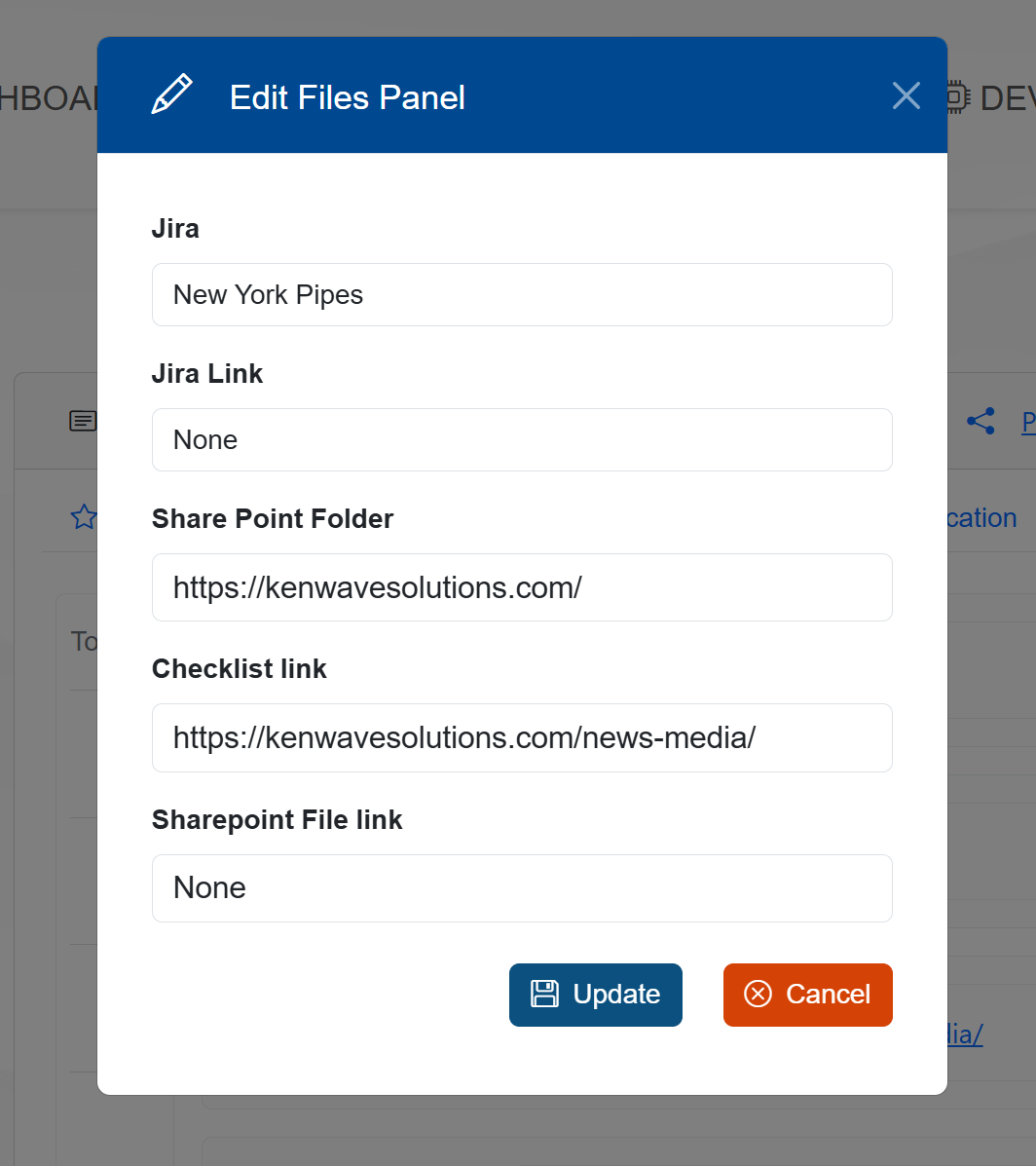
Edit Files Panel modal window
To save the new information, click on the Update button. The modal window will close, and the Files tab will display the new files and links.