Managers
The Managers tab on the Management page allows the user to get information about the selected company’s six leaders:
Project Manager
Project Leader
Field Leader
Support Leader
Field Support 1
Field Support 2
In addition to the leaders’ names, the tab displays their profile pictures.
Note
When the user doesn't have a profile picture, a default placeholder image is displayed like in the example below.
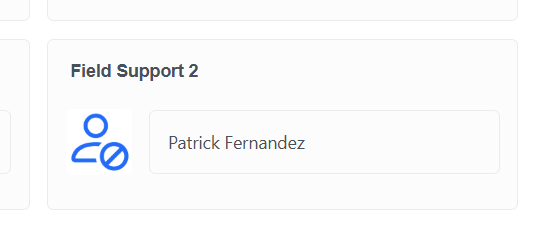
Default profile picture
The figure below shows an example of the Managers tab.
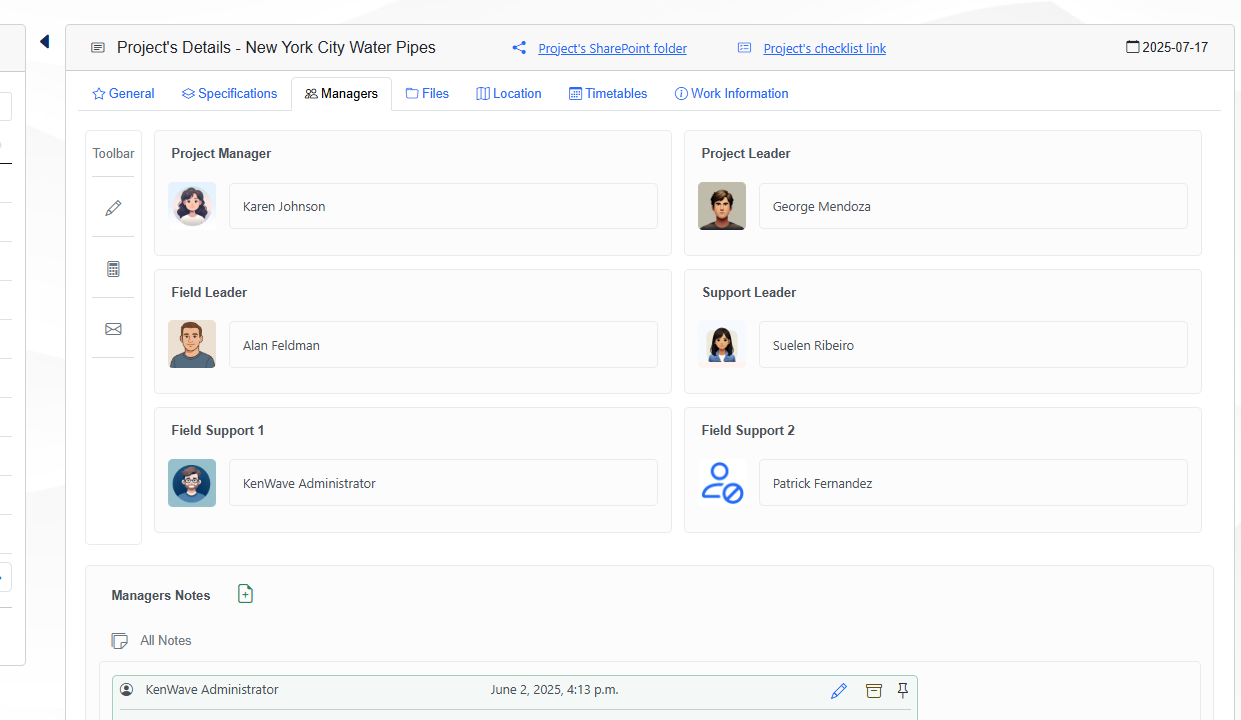
Managers tab
To change a leader, click on the pencil icon on the toolbar, represented by a pencil. This will open a modal window where you can change the leader’s information.
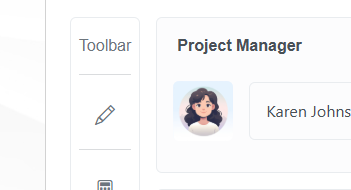
Edit icon on the toolbar
After changing the leaders, click on the Update button to save the changes. The modal window will close, and the updated information will be displayed in the Managers tab.
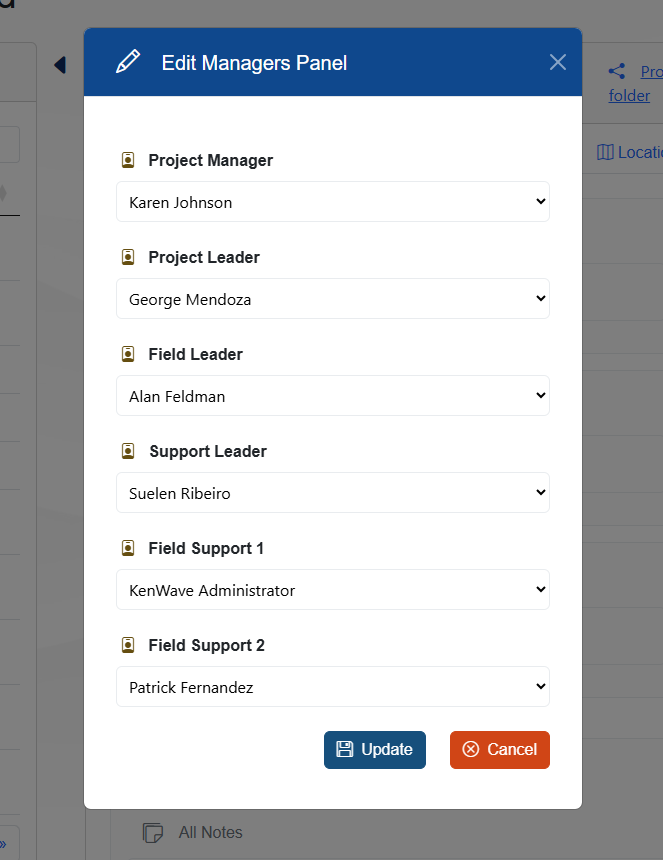
Edit Managers Panel
Note
The dropdown lists on the Edit Managers Panel allow you to select a new leader from the existing users in the company. If any user appears, ask your company's administrator to add the user to the company. If you want to add a new user and have the permission for it, you can do so in the Users tab on the Company page.