Management
Create a New Project Specification
To create a new project’s specification, follow the steps below:
Creating a New Project Specification
- On the navbar, click on the Management link.
- Click on the Specifications tab.
- Click on the button; the Create Specification form will appear.
- Fill the fields on the form.
- Click on the button; the General tab will be displayed.
- Click on the Specifications tab to display the new specification on the table.
The figure below shows an example of the Create Specification form:
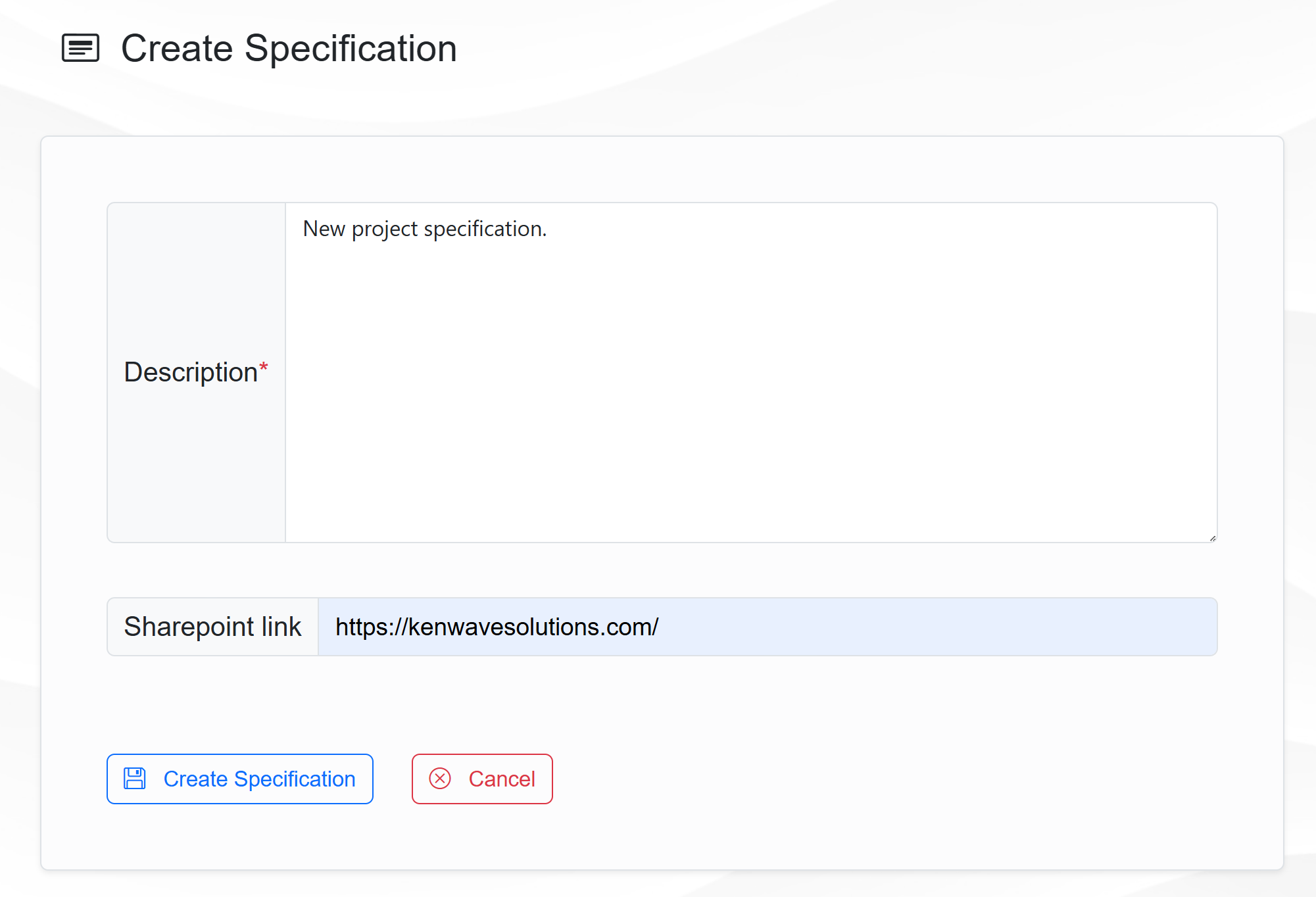
Create a new specification form
The figure below shows the new specification in the Specifications table:
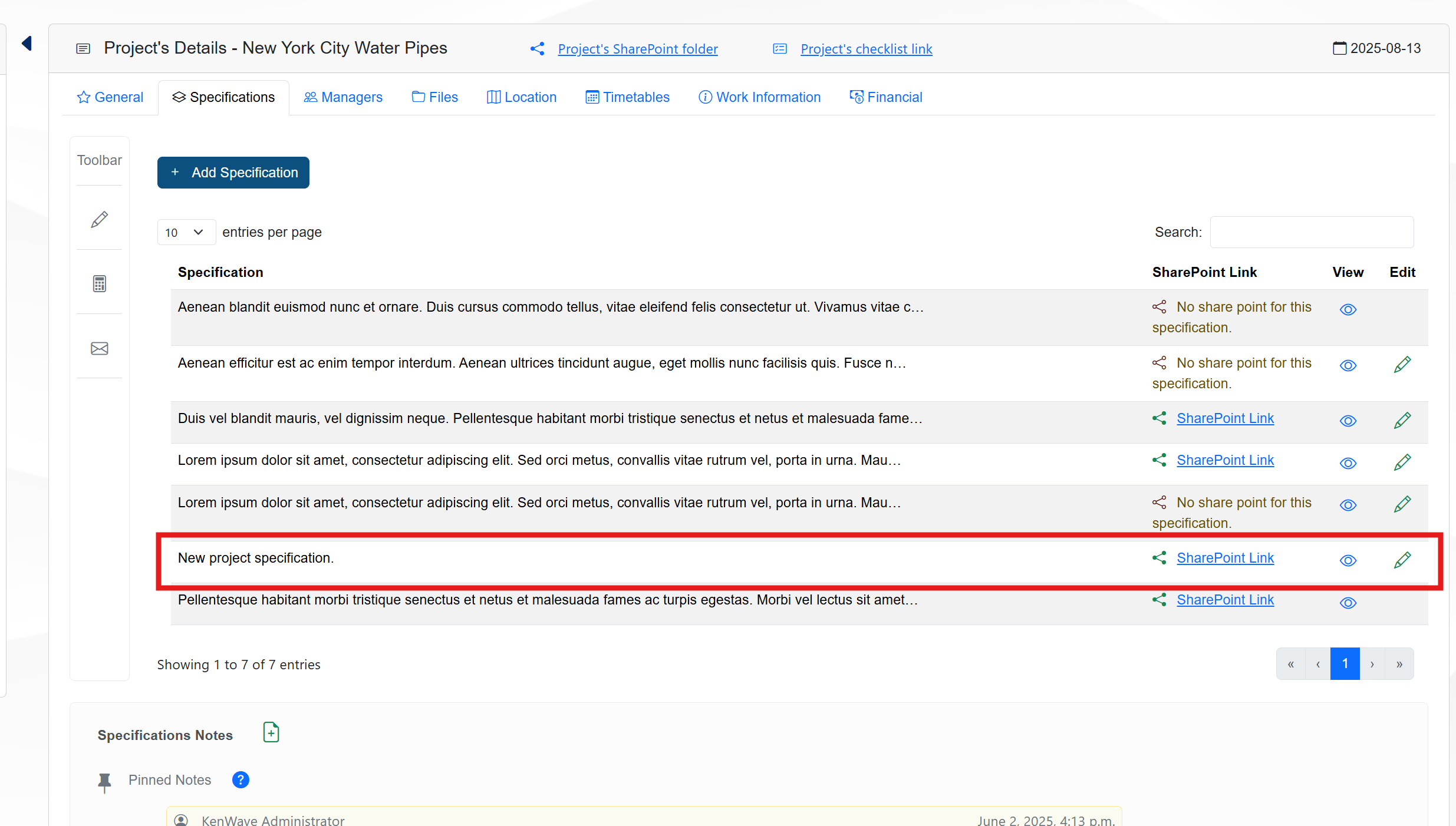
New specification created
On the View and Edit columns of the table, click on their icons to see or modify the specification details, respectively.
Note
Any user can View the specification details, but only the respective authors can Edit them. So, not all Edit buttons will be visible for all users.