Edit Project Information
Before you can edit a project, you must have the necessary permissions. If you are not the project owner or do not have the required permissions, you will not be able to edit the project information.
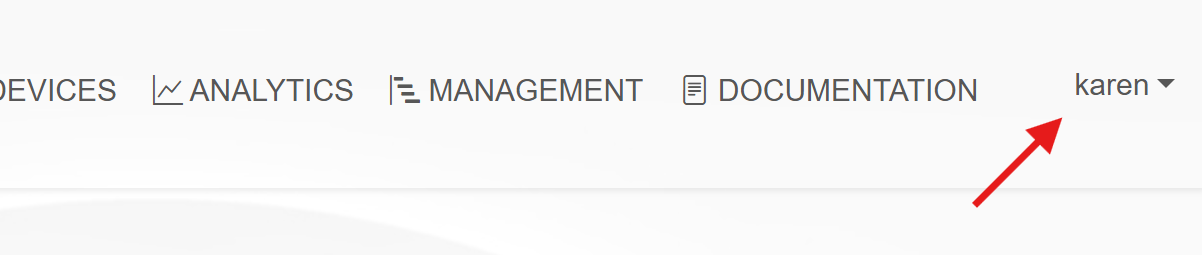
Also, ensure that you are logged in to the DRI Analytics platform. If you are not logged in, you will be redirected to the login page when you try to access the project. To check if you are loggged in, look for your username in the top right corner of the page. If you see your username, you are logged in. If not, click on the Login button to log in.
The figure below shows an example of a ficticious user called Karen logged in to the platform:
A project’s information can be edited in two ways:
On the Projects page.
On the Management page.
The Projects page allows the user to edit the project’s basic information like the project name, description, and status. The Management page allows the user to edit more detailed information about the project, such as the project’s specifications, team members, and other advanced settings.
To edit the project’s basic infromation, follow the steps below.
Editing a Project’s Basic Information
On the navbar, click on the Projects link.
On the Actions column of the projects row, clik on the Edit button.
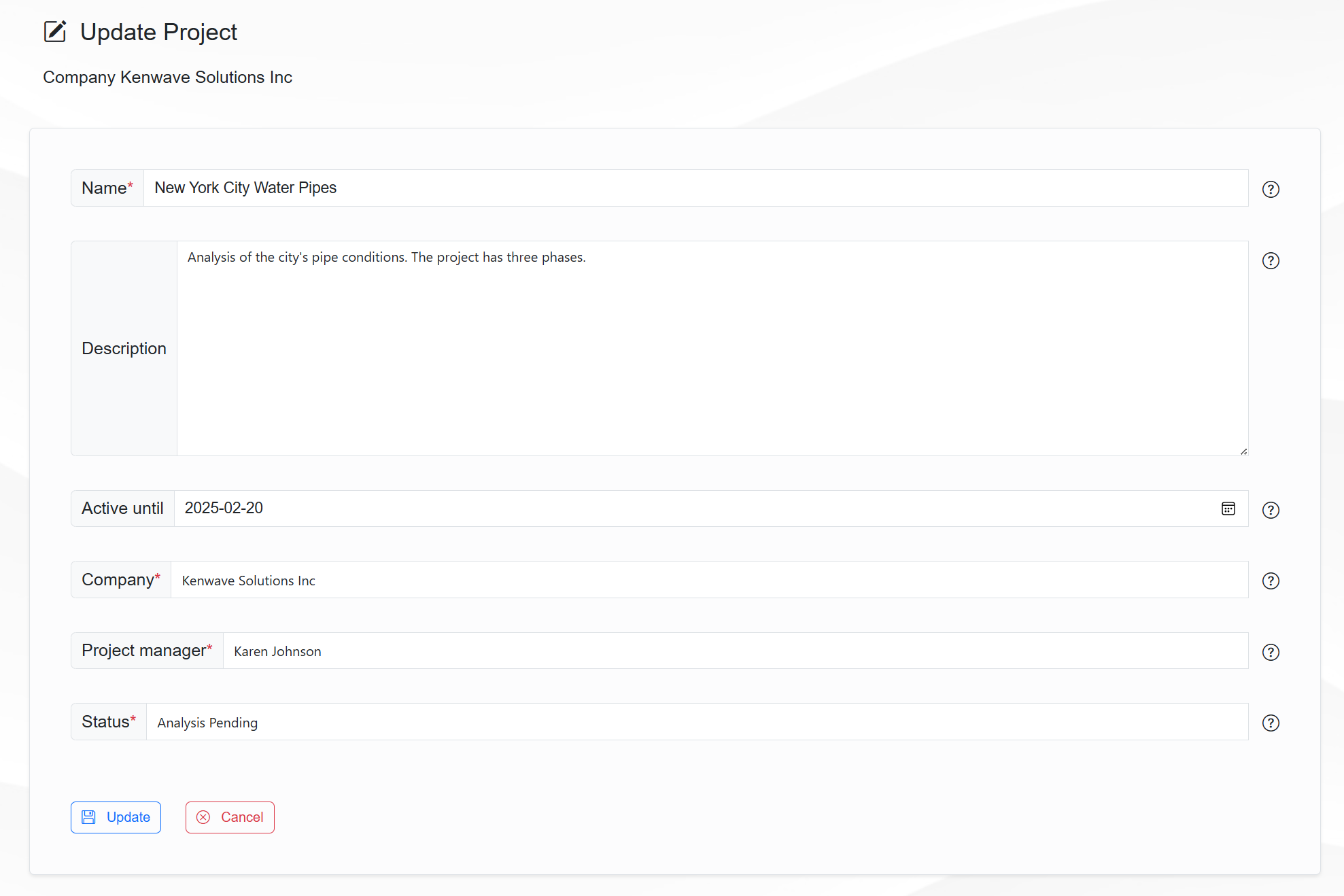
Update the fields on the Update Project form.
Click on the button Update to save the changes or Cancel to dismiss them.
The figure below shows an example of the Update Project form:
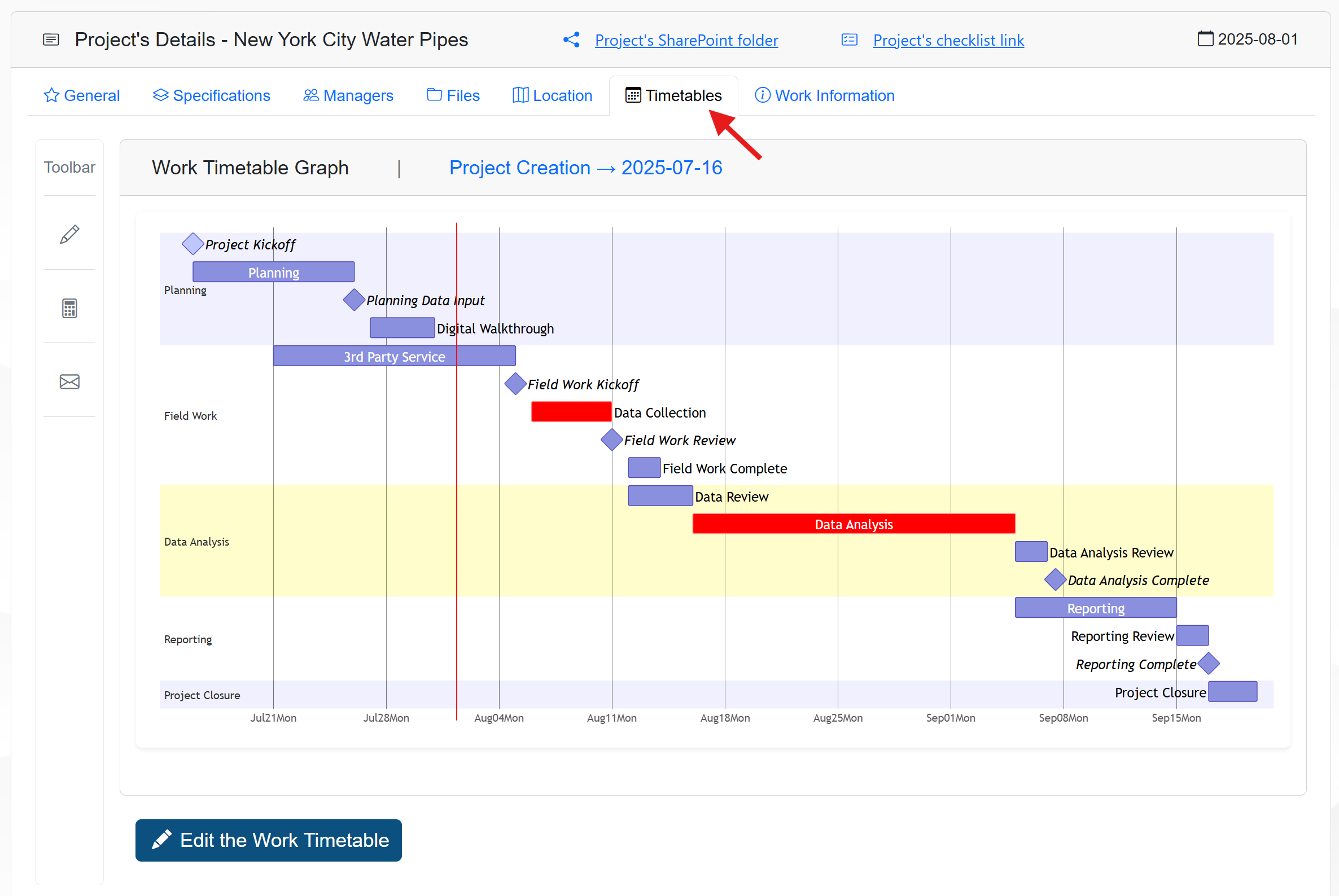
To get access to comprehensive information about the project, visit the Management page, which encompass seven tabs:
- General
- Specifications
- Managers
- Files
- Location
- Timetables
- Work Information
The figure below shows an example of the Update Project form:
To edit any tab’s information, follow the steps below.
Editing a Project’s Tab Information
- On the navbar, click on the Management link.
- Click on the tab you want to edit (e.g., General, Specifications, etc.).
- On the Toolbar, click on the Edit icon.
- Update the fields in the form.
- Click on the button to save the changes or to dismiss them.
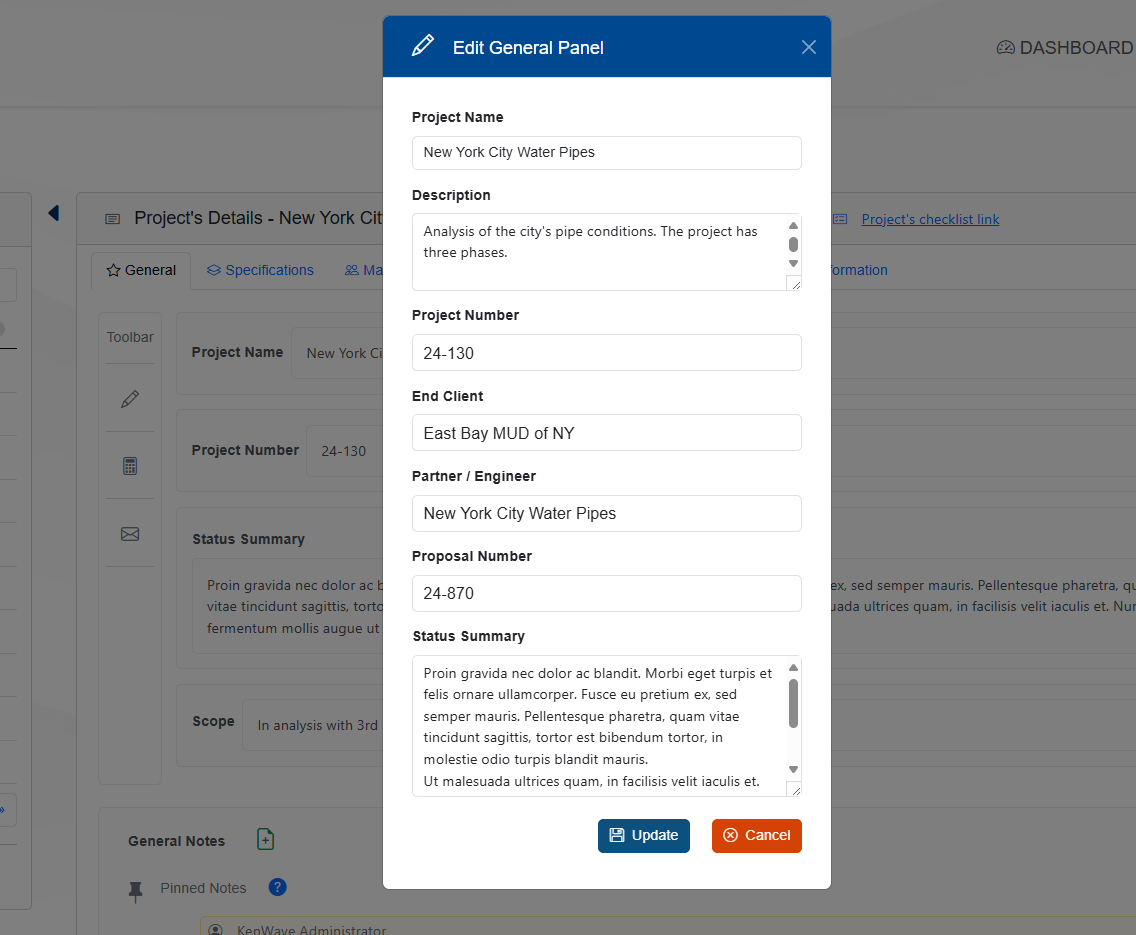
The figure below shows an example of the Edit General Panel form: